Arduino Distributor Pre-order/Group Buy
Hi All,


This is the tank. One day, perhaps it'll earn itself a real name.
Being my first robot, it is of course a skid-steering obstacle avoider. Since I already had an Arduino and wanted to continue with it, I didn't follow the Start Here robot, but instead pretty much copied LarryBot. It is made of: a Tamiya 70097 twin-motor gearbox, a Tamiya 70100 track and wheel set, an Arduino Uno and an SN754410 H-bridge chip.
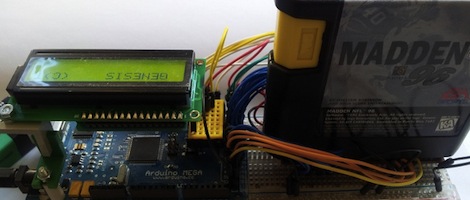
Golden Axe is great, and the Sonic 3/Sonic and Knuckles combo is one of the highest works of art from the 16-bit era, but for those of us without a working Genesis or Megadrive, we’ve had to make due with the ROMs others provide. [Lee] figured out an easy way to read the data off these old Sega cartridges using easily scavenged parts and an Arduino Mega, paving the way for an Arduino-based ROM dumper.
The connector on the bottom of a Sega Genesis cartridge has a 2×32 pinout, normally requiring 64 connections to actually read the card. These connectors aren’t readily available, but [Lee] did manage to find a few 2×31 pin connectors lying around in the form of old ISA sockets. The outer pins of a Genesis cart are used for grounds and a ‘cartridge insert’ slot, and after filing away the end of an old ISA connector, [Lee] found he could actually read the data on these old game cartridges.
There are 49 data and address pins on these old Sega carts, so an Arduino Mega needed to be brought into the mix to actually read some of the data on the ROM chip. As of now, [Lee] can read data from the cart but has only gotten so far as to read the licensing data stored at 0×80. Still, very cool and the first step towards an Arduinofied Sega cart dumper.


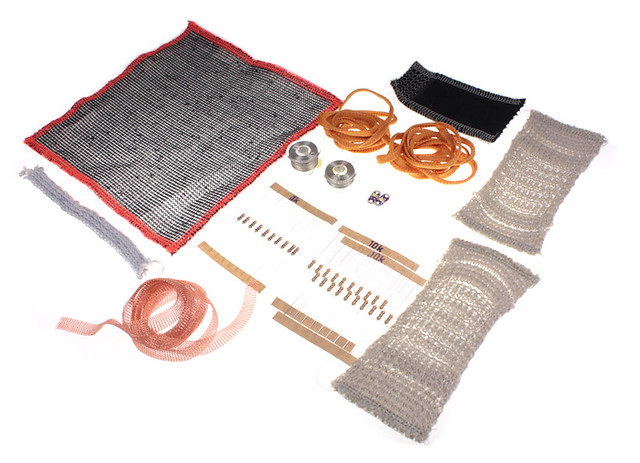
We are happy to announce the first wearable kit on the Arduino Store . This kit has been made by Plug’n'Wear specifically for us. All fabrics in this kit are produced in Italy, and strongly related to a textile family business. If you want to get deeper into the story of this product have a look at Riccardo Marchesi presentation (still in Italian, soon to be traslated!) at World Wide Rome 2012.
Read over for Kit’s features

This kit features:
source: [arduino store]

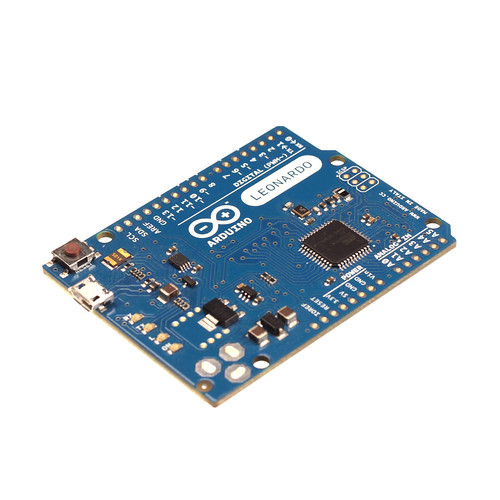
We caught our first glimpse at the new, simplified Arduino Leonardo at Maker Faire back in September of last year. At the time, we were promised a late October shipping date, but it failed to materialize. Finally, Massimo Banzi has taken the wraps off the slimmed down microcontroller and its now in stock at retailers across the web. The Leonardo sports a new pin layout, dubbed R3 (which the Uno has also been updated with), that will become standard across all Arduino boards. That's a big deal for shield makers who only have to design and manufacture an add-on once to ensure it's compatible with the entire product line. The new layout also adds some extra pins and versatility, especially in the realm of shields, which can use to the new IOREF pin to determine the voltage of the processor and thus its model. That means a shield doesn't have to be designed specifically with the new ARM-based Due in mind. The other big news is that the circuitry for converting USB to serial communication and the processor itself have been combined, which not only simplifies the design and drives down costs, but allows it to communicate directly with a computer and imitate all sorts of accessories (such as keyboards and mice). Best of all, is the price. The Leonardo, complete with headers, costs just $25 -- a good $10 less than the Uno -- while the headerless, solder-friendly version retails for $22.50. Check out the video after the break for a few more details from Massimo himself.
Continue reading Arduino Leonardo finally launches with new pin layout, lower price (video)
Filed under: Misc. Gadgets
Arduino Leonardo finally launches with new pin layout, lower price (video) originally appeared on Engadget on Mon, 23 Jul 2012 22:27:00 EST. Please see our terms for use of feeds.
Permalink | Email this | CommentsI spent some time yesterday thinking about whether we could do optical detection of DNA (particularly some variant of the DNA melting lab from MIT—see also the Fall 2008 class handouts). I noted in the 2008 handouts that they were using a blue LED array driven by a 0.29A current source (made from an LM317T voltage regulator, a rather inefficient method). The wiki page uses a regulated 5V supply and a 25Ω series resistor, which would be around 60–70mA for a typical forward drop of 3.2–3.5V in a blue LED. That’s still a pretty powerful light source for an LED. They say they are using LZ1-00B200, which has a 3.6V forward voltage, but can handle a full amp of current, so is more LED than is needed.
We can get a blue LED for under $2 that can handle 50mA continuously (LTL911CBKS5), though it has a forward voltage of typically 4.3V. In surface mount for $1.14, we could get MLEBLU-A1-0000-000T01, which has a dominant wavelength of 465–485nm (depending on bin code) and a luminous flux of 10.7 lm at 150mA (forward voltage 3.2V). I estimate the LED MIT mentions produces about 6lm at that current. The expensive part of the illumination is not the LED, but the focusing lenses to concentrate the light and the optical filtering needed to keep the excitation wavelength from being detected by the photodiode.
I was thinking that it would be cool to use a laser as an excitation source, rather than an LED, since then no lenses or filter would be needed on the source—just a blocking filter on the photoreceptor. Unfortunately, blue lasers are very expensive. What are cheap are the blue-violet lasers at 405nm, since the laser diodes are made in quantity for BluRay players. (Amazon has 405nm laser pointers for under $10 with shipping.) Unfortunately the usual fluorescent dyes used for DNA melting measurements (SYBR Green, LC Green Plus, EvaGreen) are not excited at 405nm, and need excitation wavelengths in the range 440nm–470nm). I’ve been wondering whether one of the 405nm-sensitive dyes used in flow cytometry (like Sytox Blue dead cell stain) could be used. But I’ve not found a double-stranded DNA dye for sale that is easily excited at 405nm (even Sytox Blue is way down in sensitivity from its peak), so laser excitation seems to be out—the excitation wavelengths needed for standard dyes require fairly expensive lasers. The benchtop lasers usually used in labs and flow cytometry equipment are priced in the “if-you-have-to-ask” price range. Buying enough copies for a student lab is more than this lab is worth.
I still don’t see a way to make the DNA melting curve project work within our course. Even MIT gives up half a semester to this lab, and we don’t have that much time (nor that caliber of students, on average).
I want the students to learn to solder (at least through-hole parts, not necessarily surface-mount). I don’t want to do the traditional blinky-light soldering practice, so I’ve been looking for a place in the course where it makes sense to require soldering, rather than wiring up a breadboard.
Breadboards have problems with loose wires, so the more complex the circuit, the more problems a breadboard causes. Breadboards also have problems connecting to wires that have to leave the breadboard—particularly wires to moving objects. This suggests that the EKG/EMG circuit would be the most appropriate as a soldering project, as it is fairly complicated and the long wires to the Ag/AgCl gel electrodes can cause a lot of problems with loose connections (my first check on debugging is to wiggle the header pins for those wires).
But I want the students to be doing some designing for the EKG circuit, not just soldering up a predetermined circuit, so I’m thinking of designing an instrumentation-amp protoboard, which has an ina126 instrumentation amp and an MCP6002 dual op amp chip, with power pins wired up and a place for the Rgain resistor and bypass capacitors, but everything else in a breadboard-like configuration, so that resistors, capacitors, and jumper wires could be added. Off-board connections could be done with screw terminals to make sturdy connections.
My son and I came up with the further idea of adding an optional LED output, to make a blinky-light-EKG device. I think that the approximately 1.5V, 30msec pulse that I was seeing for the R segment of the EKG would be enough to make a visible flash—I’ll have to try it out on my breadboard. I tried it today, but I was only seeing 0.5V pulses today (poorer contact with the electrodes?), and I had to raise the 3.9kΩ feedback resistor to 10kΩ to increase the gain of the final stage., which was enough to get weak flashes from an LED with a 100Ω series resistor. Because the op amp has limited output current (±23mA short circuit), I felt it fairly safe to put the LED directly between the op amp output and the Vref signal, which gives a good flash even with a green LED.
The lower voltage that I got this time (until I raised the gain) makes it clear that if I do make an EKG protoboard, it should have room for some trim pots for adjusting the final gain.


For all their hoopla, the GPIO pins on the Raspberry Pi aren’t terribly useful on their own. Sure, you can output digital data, but our world is analog and there just isn’t any ADCs or DACs on these magical Raspi pins.
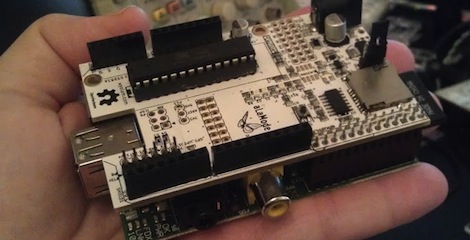
The AlaMode, a project designed by [Kevin], [Anool], and [Justin] over at the Wyolum OSHW collaborative aims to fix this. They developed a stackable Arduino-compatable board for the Raspberry Pi.
Right off the bat, the AlaMode plugs directly into the GPIO pins of the Raspberry Pi. From there, communication with the ATMega of the Arduino is enabled, allowing you to send and receive data just as you would with an Arduino. There’s a real-time clock, servo headers, plenty of ways to power the board, and even a breakout for this GPS module.
A lot of unnecessary cruft is done away with in the AlaMode; There’s no USB port, but it can be programmed directly over the GPIO pins of the Raspberry Pi. Pretty neat, and we can’t wait to grab one for our Raspi.


The Arduino Team recently posted a video of Massimo Banzi introducing the new Arduino Leonardo, which is now available for sale. The Leonardo uses an ATmega32u4 microcontroller, which runs your sketches and also communicates with your computer directly via serial. (Whereas previous boards used a separate chip to handle the serial communication.) This change allows the Arduino to behave as a mouse or keyboard and makes interfacing with computer programs much easier. The new board also has a few more improvements including more analog inputs, one additional PWM output, and an IOREF pin so that expansion shields can determine what voltage level the board is operating on. This last feature becomes important when the Arduino Due comes out, since it will run at 3.3 volts. Those of you who really want to dig into the nitty gritty, check out the official Arduino Leonardo page, which outlines all the differences in this new and less expensive board.


If you’ve ever needed a short-range remote control for a project, [firestorm] is here to help you out. He put up a great tutorial on using an IR remote to do just about anything with everyone’s favorite microcontroller platform.
[firestorm] used the Arduino IRremote library to decode the button presses on his remote. After uploading the IR receive demo included in the library, the Arduino spit out hex codes of what the IR receiver was seeing. [firestorm] wrote these down, and was able to program his Arduino to respond to each individual button press.
After figuring out the IR codes for his remote, [firestorm] threw a shift register into his bread board and attached a seven-segment LED. Since [firestorm] knows the codes for the number buttons on his remote, it’s very easy to have the LED display flash a number when the corresponding button on the remote is pressed.
A single seven-segment display might not be extremely useful, but with [firestorm]‘s tutorial, it’s easy to give your Arduino some remote control capabilities with a simple IR receiver. Not bad for a few dollars in parts.


In this video Massimo explains the Arduino Leonardo, talking about its differences with Arduino UNO and playing around with its mouse & keyboard features.
If you want to have a closer look to the latest arrival in the Arduino Family click here, if you want to follow Massimo’s project click here. Arduino Leonardo comes in two different flavours: with headers and without headers.