Posts with «arduino» label

Arduino and KTM-S1201 LCD modules

Learn how to use very inexpensive KTM-S1201 LCD modules in this edition of our Arduino tutorials. This is chapter forty-nine of a series originally titled “Getting Started/Moving Forward with Arduino!” by John Boxall – A tutorial on the Arduino universe. The first chapter is here, the complete series is detailed here.

Introduction

After looking for some displays to use with another (!) clock, I came across some 12-digit numeric LCD displays. They aren’t anything flash, and don’t have a back light –  however they were one dollar each. How could you say no to that? So I ordered a dozen to try out. The purpose of this tutorial is to show you how they are used with an Arduino in the simplest manner possible.

Moving forward – the modules look like OEM modules for desktop office phones from the 1990s:

With a quick search on the Internet you will find a few sellers offering them for a dollar each. The modules (data sheet) use the NEC PD7225 controller IC (data sheet):

They aren’t difficult to use, so I’ll run through set up and operation with a few examples.

Hardware setup

First you’ll need to solder some sort of connection to the module – such as 2×5 header pins. This makes it easy to wire it up to a breadboard or a ribbon cable:

The rest of the circuitry is straight-forward. There are ten pins in two rows of five, and with the display horizontal and the pins on the right, they are numbered as such:

Now make the following connections:

  • LCD pin 1 to 5V
  • LCD pin 2 to GND
  • LCD pin 3 to Arduino D4
  • LCD pin 4 to Arduino D5
  • LCD pin 5 to Arduino D6
  • LCD pin 6 to Arduino D7
  • LCD pin 7 – not connected
  • LCD pin 8 – Arduino D8
  • LCD pin 9 to the centre pin of a 10k trimpot – whose other legs connect to 5V and GND. This is used to adjust the contrast of the LCD.

The Arduino digital pins that are used can be changed – they are defined in the header file (see further on). If you were curious as to how low-current these modules are:
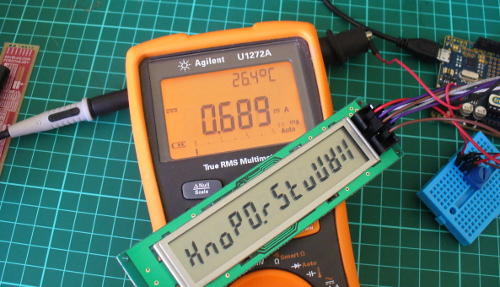
That’s 0.689 mA- not bad at all. Great for battery-powered operations. Now that you’ve got the module wired up, let’s get going with some demonstration sketches.

Software setup

The sketches used in this tutorial are based on work by Jeff Albertson and Robert Mech, so kudos to them – however we’ve simplified them a little to make use easier. We’ll just cover the functions required to display data on the LCD. However feel free to review the sketches and files along with the controller chip datasheet as you’ll get an idea of how the controller is driven by the Arduino.

When using the LCD module you’ll need a header file in the same folder as your sketch. You can download the header file from here. Then every time you open a sketch that uses the header file, it should appear in a tab next to the main sketch, for example:

There’s also a group of functions and lines required in your sketch. We’ll run through those now – so download the first example sketch, add the header file and upload it. Your results should be the same as the video below:

So how did that work? Take a look at the sketch you uploaded.  You need all the functions between the two lines of “////////////////////////” and also the five lines in void setup(). Then you can display a string of text or numbers using

ktmWriteString();

which was used in void loop(). You can use the digits 0~9, the alphabet (well, what you can do with 7-segments), the degrees symbol (use an asterix – “*”) and a dash (use  – “-“). So if your sketch can put together the data to display in a string, then that’s taken care of.

If you want to clear the screen, use:

ktmCommand(_ClearDsp);

Next – to individually place digits on the screen, use the function:

tmPrnNumb(n,p,d,l);

Where n is the number to be displayed (zero or a positive integer), p is the position on the LCD for the number’s  (the positions from left to right are 11 to 0…), d is the number of digits to the right of the decimal point (leave as zero if you don’t want a decimal point), and l is the number of digits being displayed for n. When you display digits using this function you can use more than one function to compose the number to be displayed – as this function doesn’t clear the screen.

To help get your head around it, the following example sketch (download) has a variety of examples in void loop(). You can watch this example in the following video:

Conclusion

So there you have it – an incredibly inexpensive and possibly useful LCD module. Thank you to Jeff Albertson and Robert Mech for their help and original code.

In the meanwhile have fun and keep checking into tronixstuff.com. Why not follow things on twitter, Google+, subscribe  for email updates or RSS using the links on the right-hand column? And join our friendly Google Group – dedicated to the projects and related items on this website. Sign up – it’s free, helpful to each other –  and we can all learn something.

The post Arduino and KTM-S1201 LCD modules appeared first on tronixstuff.

Handwriting suck? Build a machine to do it for you

Children of the information age are doomed to have the worst handwriting just for lack of use if nothing more. But some students at Olin College harnessed technology to find a solution to that problem. Meet Herald, a CNC machine that can produce beautiful calligraphy.

The machine uses a gantry to move the writing tip along the X and Y axes. The flexible-nib calligraphy pen is mounted on a sprocket which rotates the tip onto the writing surface, taking care of the third axis. The rig was beautifully rendered from their CAD drawings, then tweaked to ensure the smoothest motion possible before the quintet of Sophomores began the physical build.

The drive hardware is very simple yet it produces great results. It uses an Arduino along with three stepper motor drivers. There are also limiting switches to protect the hardware from runaway code. The software interface designed by the team lets the user cut and paste their text, and select a font, font size, alignment, etc. It then converts the text to G-code and pushes it to the Arduino where the GRBL package takes care of business.

Don’t miss the device in action, writing out a [Langston Hughes] work in the clip after the break.


Filed under: cnc hacks
Hack a Day 08 Mar 11:01

Twine Cloud Shield puts Arduino gadgets online in seconds (video)

If you're hip-deep in Arduino projects, you're likely aware of shields: graft-on boards that add functionality, most often getting the Arduino in touch with the rest of the world. Many of these require more than a little coding skill to get the ball rolling, even in light of the Netduino, which has led Supermechanical to unveil its new Twine Cloud Shield. The board links the Arduino to a Twine WiFi sensor and gives the Arduino every internet feature the Twine can offer through just three lines of code. There's even a pair of touchpads on the shield to trigger actions through capacitive touch. Do be prepared to pony up for that ease of use when it costs $35 for the Cloud Shield alone, and $150 to bundle one with the Twine. Still, the outlay may be justified if you're more interested in quickly finishing a fun experiment than frittering your time away on the basics.

Filed under: Misc, Peripherals

Comments

Source: Supermechanical

MARS ROVER Autonomous Desert Roving Robot (Help Needed)

Autonomous Navigation Requirements Guy's I'm completely new to this and just ordered my first prototype kit with the following components as a starting point. 1. Arduino UNO Rev3 2. Dagu Rover 5 4wd 3. Parallax PING 4. Motor sheild kit In sum, here are my project requirements.  I've been searching the web and LMR to find snippets of code that I might be able to use and am now reaching out to the forum to see if anyone has any interest in sharing some more specific code for my prototype.

read more

Let's Make Robots 06 Mar 19:39
arduino  autonomous  avr  gps  rover  

Wearable soundscape from Canada


I’m reblogging from Core77 this interesting wearable project because I’d like to highlight the using of Arduino Lilypad board:

Bio Circuit stems from our concern for ethical design and the creation of media-based interactions that reveal human interdependence with the environment. With each beat of the heart, Bio Circuit connects the wearer with the inner workings of their body.

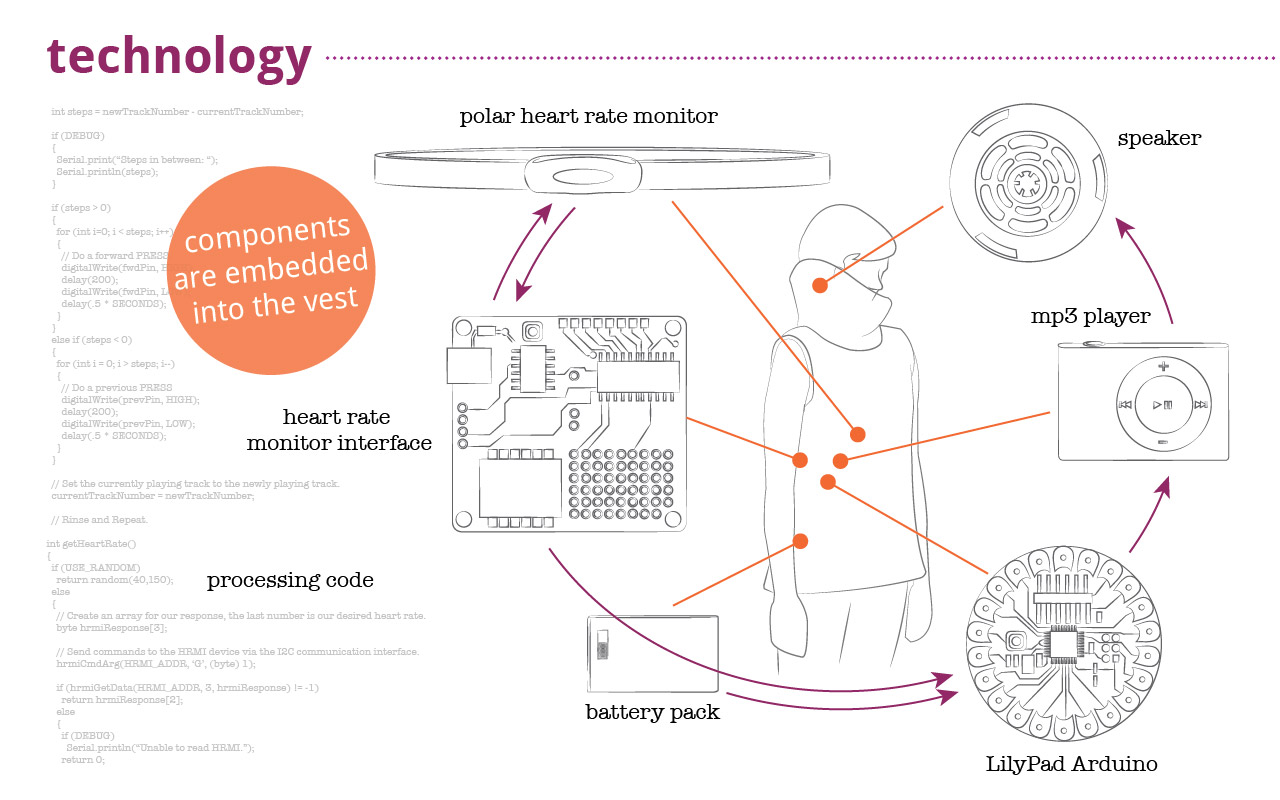
It was created at Emily Carr University by Industrial Design student Dana Ramler, and MAA student Holly Schmidt and provides a form of bio feedback using data from the wearer’s heart rate to determine what “sounds” they hear through the speaker embedded in the collar of the garment. Here’s the schematic of technology:


Have a look at the video below to see how it works and don’t miss BioCircuit Project page on Dana’s Portfolio:


Recap of #hackPHX: Arduino Hackathon @HeatSyncLabs

Friday night kicked off the #hackPHX Arduino hackathon at HeatSync Labs, the Phoenix area hackerspace. Everyone gathered to form 10 teams that included one Arduino newbie, one veteran, and one entrant with "hackerspace" skills (3D printing lasering welding sewing, whatever). They would have use of the entire hackerspace, an on-site designer from sponsor Cynergy, and whatever they could find at local hardware stores. Oh, and one more thing, they had to use our secret ingredient: The Shieldbot from SeeedStudios, developed by Colin Ho is a shield robot for Arduino that has five reflectance sensors, two DC motors and a 3.7V lion battery.

NES annoyance timer makes no friends at your work

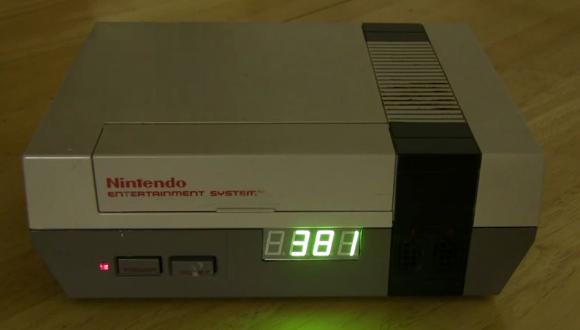
Still trying to solidify that reputation as the office Grinch? This project will let everyone know you’re a complete jerk in no time. It’s called the 8-bit Annoying Person Remover. It detects when someone enters your office at which point it starts to play the Super Mario Bros. theme song while the display counts down 400 seconds. Just like in the game the music gets faster at the end and when it stops they know it’s time to get the heck out.

The hardware inside isn’t too complicated. An Arduino and a Wave shield do most of the work. The song played is stored on an SD card and can easily be changed. There’s a speaker mounted under the top heat vent of the enclosure. The device defaults to displaying the time of day, but monitors a motion sensor on one side to detect when someone comes through the door. This also works when someone leaves, cutting off the music and resetting the display. Don’t miss a video of it in action after the break.

It’s as if this was made specifically for the Comic Book Guy

[via Technabob]


Filed under: lifehacks
Hack a Day 05 Mar 21:01
alarm  arduino  clock  lifehacks  nes  timer  wave shield  

Wireless pinball controller for tablet gaming

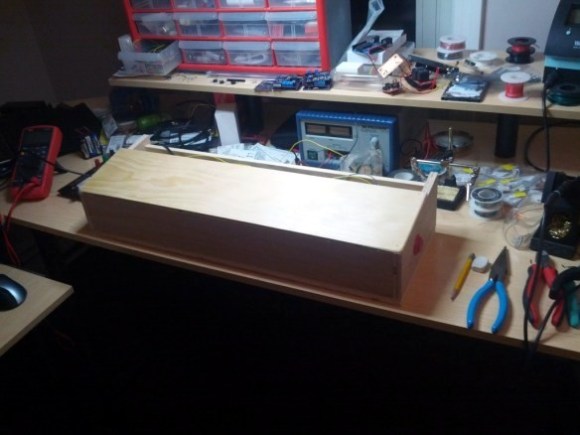
This wooden box is a wireless pinball controller and tablet stand. The idea is to set it on a workbench to give you some of the thrill of standing and playing the real thing. [Jeff] has been rather addicted to playing a pinball app on Android lately, and started the journey because he needed a way to give his thumbs some relief.

An Arduino monitors buttons on either side of this wooden controller. [Jeff] is new to working with hardware (he’s a Linux Kernel developer by trade) and was immediately struck with button debouncing issues. Rather than handle this in software (we’ve got a super-messy thread on that issue with our favorite at the bottom) he chose a hardware solution by building an SR latch out of two NAND gates.

With the inputs sorted out he added a BlueSMiRF board to the project which allowed him to connect a Nexus 7 tablet via Bluetooth. At this point he ran into some problems getting the device to respond to his control as if it were an external keyboard. His stop-gap solution was to switch to a Galaxy Tab 10.1 which wasn’t throwing cryptic errors. Hopefully he’ll fix this in the next iteration which will also include adding a plunger to launch the pinball, a part which just arrived in the mail as he was writing up this success.

We’ve embedded his quick demo video after the break.


Filed under: android hacks, arduino hacks

Turing and interaction at the Science Museum in London

Codebreaker is the exhibition started last year at  the Science Museum of London and celebrating  the centenary of the birth of computing pioneer Alan Turing.

Hirsch&Mann were commissioned to create a “series of exhibits which demonstrated and recognized the progress in computing while at the same time representing a spirit of engineering and innovation” .

They created three installations that demonstrated 3 programming principles:

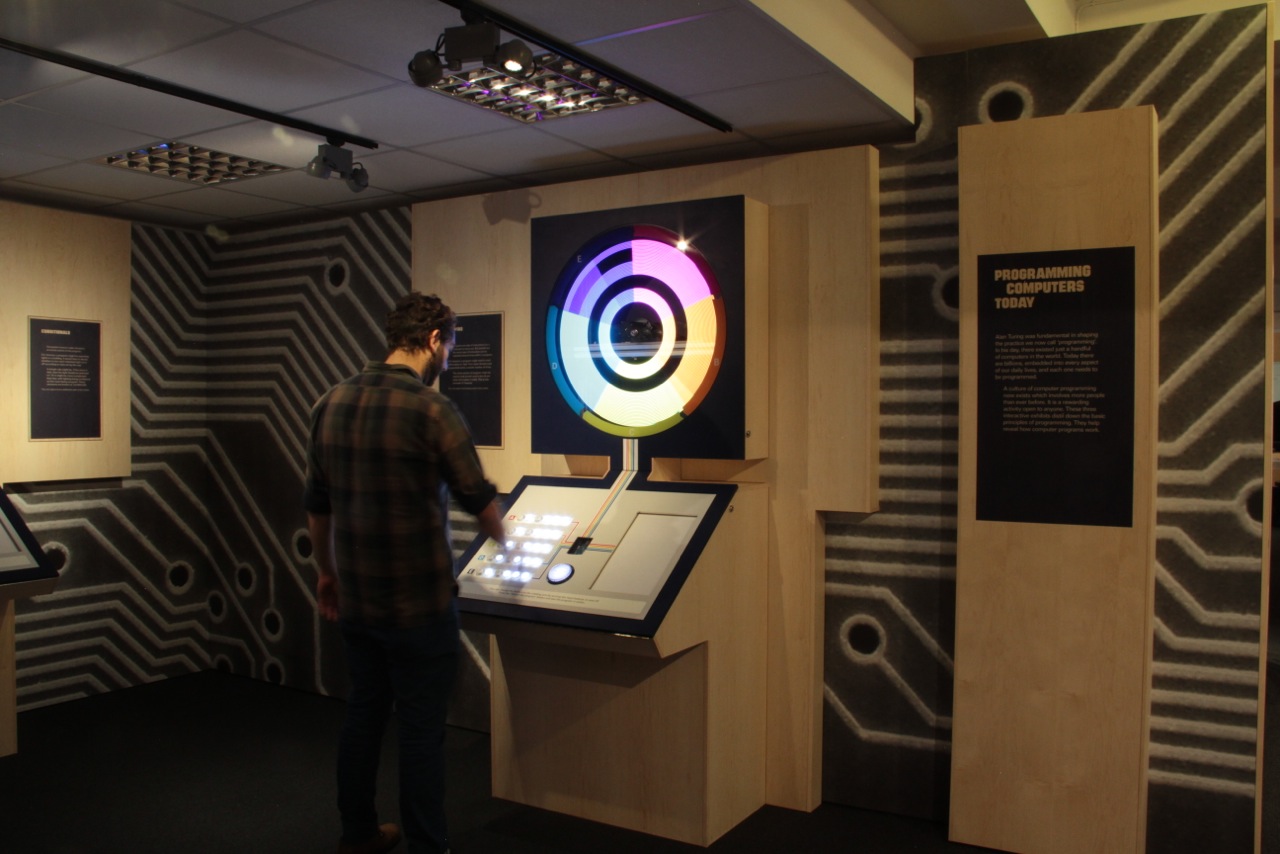
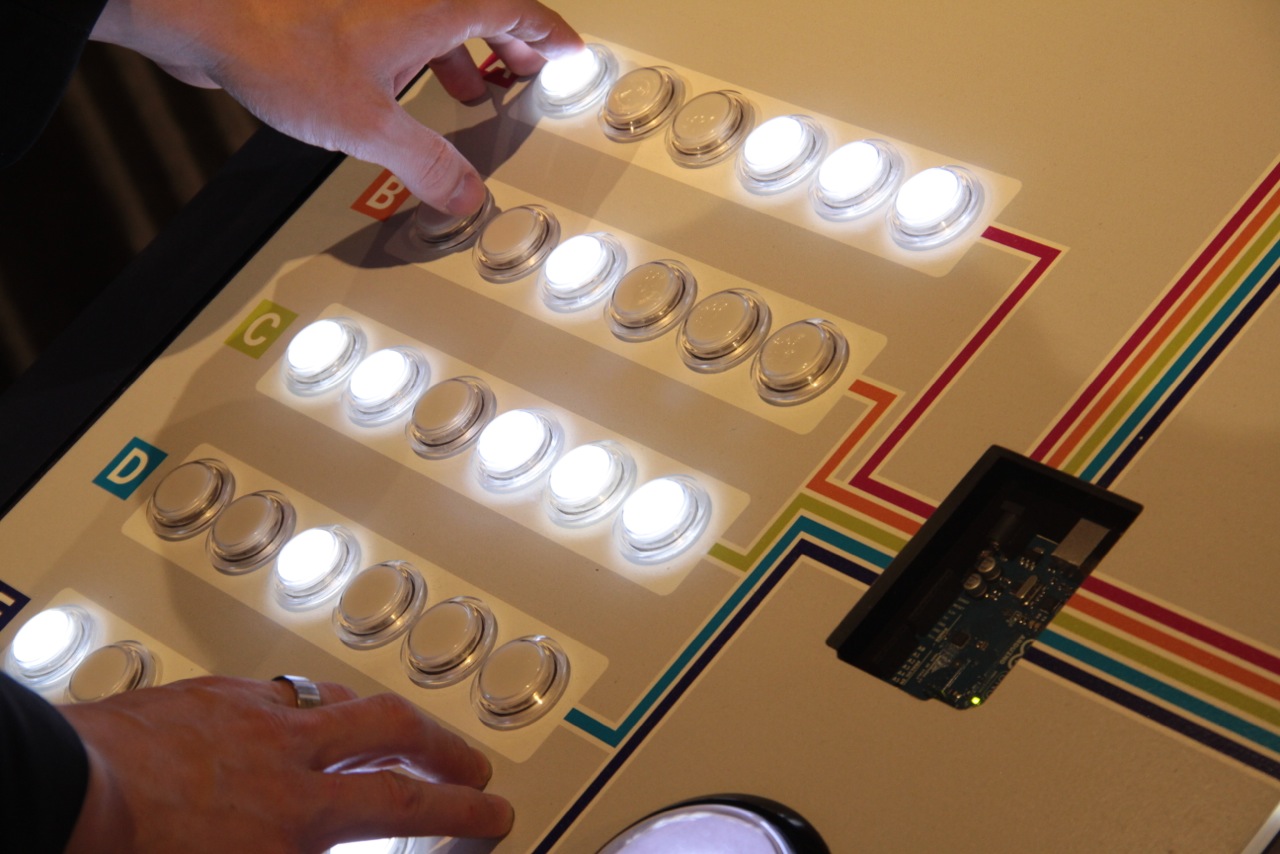
LOOPING: A spinning rotor with LEDs on it -> creating POV patterns all controlled by 30 arcade style illuminated switches.

CONDITIONALS: A version of Wolfram’s cellular automata – user was able to choose the result of the child node once the parent node conditions were met

VARIABLES: A mechanical tree – the branch angles were controlled by sliders on the console. Slider A controlled 1 angles at the base of the tree, slider 2 controlled the next 2 angles, slider 3, the next 4 angles and slider 4 the final 8 sliders.

Each installation has a light box which is revealed as soon as you press the BIG GLOWING button on the console. This turns on the lightbox – which has simplified pseudo code and essentially allows people to “step into” the code. Each line that is currently running is highlighted and then you see the result on the installation.

The whole point of these installations was to show where we have come since Turing’s time and stepping on his shoulders.

If you have the chance to visit the exhibition (it’s free!) or watch the video below you will see that at the center of each console there is an Arduino UNO.


L’Arduino Tour arriva a Lecce! Le iscrizioni sono aperte


Dopo  Matera, Reggio Emilia e Milano, l’Arduino Tour arriva a  San Cesario di Lecce il 15, 16 e 17 con una presentazione e un workshop di due giorni.

Vi invitiamo tutti alla talk pubblica di venerdì 15  alle 19 per conoscere da vicino il progetto open source Arduino con le sue novità e i progetti in corso. E se oltre all’immaginazione volete far funzionare le mani e la testa prenotate un posto per il corso del weekend, sabato e domenica dalle 10 alle 18. Tutti gli iscritti potranno fare una full immersion per muovere i primi passi con il microprocessore Made-In-Italy e inoltre si porteranno a casa il nuovo Starter Kit e suoi goodies, recentemente recensito su Domusweb.

Entrambe gli eventi saranno ospitati dall’associazione culturale e giornale locale Alambicco.


Arduino Blog 04 Mar 09:33