Posts with «arduino» label

Arduino Tutorials – Chapter 30 – twitter

Learn how to tweet from your Arduino.

This is chapter thirty of our huge Arduino tutorial series. Updated 16/06/2014

In this article you will learn how to send messages from an Ethernet-enabled Arduino to twitter. For the uninitiated who may be thinking “what is all this twitter nonsense about?”, twitter is a form of microblogging. 

You can create a message with a maximum length of 140 characters, and broadcast this on the twitter service. For people to receive your messages (or tweets) they also need to be a member of twitter and choose to subscribe to your tweets.

Generally people will use the twitter service using one of two methods: either using a web browser, or using the twitter application on a smartphone or tablet computer. For example, here is a typical web browser view:

… and here is an example of a twitter application running on an Android OS smartphone:

The neat thing about twitter on a mobile device is that if your username is mentioned in a tweet, you will be notified pretty well immediately as long as you have mobile data access. More on that later. In some areas, you can set twitter to send tweets from a certain user to your mobile phone via SMS – however if doing so be careful to confirm possible charges to your mobile phone account.

Finally, if you are worried about privacy with regards to your tweets, you can set your account to private and only allow certain people to follow your tweets.

So let’s get started.

First of all – you will need a twitter account. If you do not have one, you can sign up for one here. If you already have a twitter account, you can always open more for other uses – such as an Arduino.

For example, my twitter account is @tronixstuff, but my demonstration machine twitter account is @tronixstuff2. Then I have set my primary account to follow my machine’s twitter account.

Now log into twitter with using the account you will have for your Arduino and visit this page and get yourself a token by following the Step One link. The process will take you through authorising the “tweet library” page to login to your twitter account – this is ok. It will then present you with a long text called a “token”, for example:

Save your token somewhere safe, as you will need to insert it into your Arduino sketch. Finally, don’t give it to others as then they will be able to post onto twitter using your account. Next, follow step two from the same page – which involves download and installation of the required Arduino library.

Now for the hardware.

You will need an Arduino Uno or compatible board with an Ethernet shield that uses the W5100 Ethernet controller IC (pretty much all of them) – or consider using a Freetronics EtherTen – as it has everything all on the one board, plus some extras:

Furthermore you will need to power the board via the external DC socket – the W5100 IC uses more current than the USB power can supply. A 9V 1A plug pack/wall wart will suffice. Finally it does get hot – so be careful not to touch the W5100 after extended use. In case you’re not sure – this is the W5100 IC:

If you’re looking for an Arduino-twitter solution with WiFi, check out the Arduino Yún tutorials.

From this point it would be a good idea to check your hardware is working. To do so, please run the webserver example sketch as explained in chapter sixteen (Ethernet). While you do that, we’ll have a break…

Sending your first tweet

If you want your Arduino to send a simple tweet consider the following sketch. We have a simple function tweet() which simply sends a line of text (which has a maximum length of 140 characters). Don’t forget to update your IP address, MAC address and token:

// Simple twitter interface

#include <SPI.h>
#include <Ethernet.h>
#include <Twitter.h>

// Alter IP address to suit your own network!
byte mac[] = {   0xDE, 0xAD, 0xBE, 0xEF, 0xFE, 0xED }; // create MAC address for ethernet shield
byte ip[] = {   192, 168, 0, 99}; // choose your own IP for ethernet shield
Twitter twitter("aaaaaaa"); // replace aaaaaaa with your token

void setup()
{
  delay(5000);
  Ethernet.begin(mac, ip);
  Serial.begin(9600);
}

void tweet(char msg[])
{
  Serial.println("connecting ...");
  if (twitter.post(msg))
  {
    // Specify &Serial to output received response to Serial.
    // If no output is required, you can just omit the argument, e.g.
    // int status = twitter.wait();
    int status = twitter.wait(&Serial);
    if (status == 200)
    {
      Serial.println("OK.");
    } 
    else
    {
      Serial.print("failed : code ");
      Serial.println(status);
    }
  } 
  else
  {
    Serial.println("connection failed.");
  }
}

void loop()
{
  delay(1000);
  tweet("Purple monkey dishwasher");
  do{} while(1>0); // endless loop
}

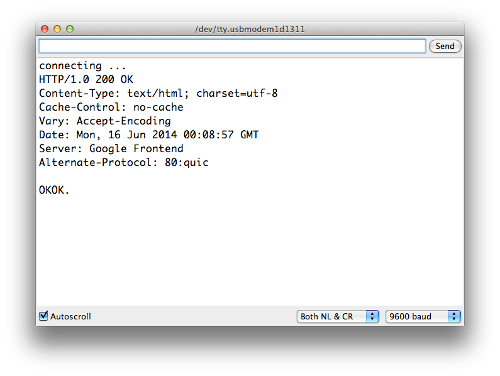
You can check the status of the tweeting via the serial monitor. For example, if the tweet was successful you will see:

However if you try to send the same tweet more than once in a short period of time, or another error takes place – twitter will return an error message, for example:

And finally if it works, the tweet will appear:

Previously we mentioned that you can be alerted to a tweet by your mobile device. This can be done by putting your own twitter account name in the contents of the tweet.

For example – my normal twitter account is @tronixstuff. If I put the text “@tronixstuff” in the text tweeted by my Arduino’s twitter account – the twitter app on my smartphone will let me know I have been mentioned – as shown in the following video:

You may have noticed in the video that a text message arrived as well – that service is a function of my cellular carrier (Telstra) and may not be available to others. Nevertheless this is a neat way of getting important messages from your Arduino to a smart phone or other connected device.

Sending data in a tweet

So what if you have  a sensor or other device whose data you want to know about via twitter? You can send data generated from an Arduino sketch over twitter without too much effort.

In the following example we’ll send the value from analogue pin zero (A0) in the contents of a tweet. And by adding your twitter @username you will be notified by your other twitter-capable devices:

// Simple twitter interface

#include <SPI.h>
#include <Ethernet.h>
#include <Twitter.h>

// Alter IP address to suit your own network!
byte mac[] = {   0xDE, 0xAD, 0xBE, 0xEF, 0xFE, 0xED }; // create MAC address for ethernet shield
byte ip[] = {   192, 168, 0, 99}; // choose your own IP for ethernet shield
Twitter twitter("aaaaaaa"); // replace aaaaaaa with your token

int analogZero;
char tweetText[140];

void setup()
{
  delay(5000);
  Ethernet.begin(mac, ip);
  Serial.begin(9600);
}

void tweet(char msg[])
{
  Serial.println("connecting ...");
  if (twitter.post(msg))
  {
    // Specify &Serial to output received response to Serial.
    // If no output is required, you can just omit the argument, e.g.
    // int status = twitter.wait();
    int status = twitter.wait(&Serial);
    if (status == 200)
    {
      Serial.println("OK.");
    } 
    else
    {
      Serial.print("failed : code ");
      Serial.println(status);
    }
  } 
  else
  {
    Serial.println("connection failed.");
  }
}

void loop()
{
  // get some data from A0. 
  analogZero=analogRead(0);

  // assemble message to send. This inserts the value of "analogZero" into the variable "tweetText" at point %d
  sprintf(tweetText, "Pin analogue zero reads: %d. @username.", analogZero); // change @username to your twitter account name

  delay(1000);
  tweet(tweetText);
  do{ } 
  while(1>0); // endless loop
}

You may have noticed a sneaky sprintf function in void loop(). This is used to insert the integer analogZero into the character array tweetText that we send with the tweet() function. And the results of the example:

So you can use the previous sketch as a framework to create your own Arduino-powered data twittering machine. Send temperature alerts, tank water levels, messages from an alarm system, or just random tweets to your loved one.

Conclusion

So there you have it, another useful way to send information from your Arduino to the outside world. Stay tuned for upcoming Arduino tutorials by subscribing to the blog, RSS feed (top-right), twitter or joining our Google Group. Big thanks to @neocat for their work with the twitter  Arduino libraries.

And if you enjoyed the tutorial, or want to introduce someone else to the interesting world of Arduino – check out my book (now in a third printing!) “Arduino Workshop” from No Starch Press.

In the meanwhile have fun and keep checking into tronixstuff.com. Why not follow things on twitter, Google+, subscribe  for email updates or RSS using the links on the right-hand column? And join our friendly Google Group – dedicated to the projects and related items on this website. Sign up – it’s free, helpful to each other –  and we can all learn something.

The post Arduino Tutorials – Chapter 30 – twitter appeared first on tronixstuff.

Tronixstuff 04 Dec 01:52

Arduino Tutorials – Chapter 30 – twitter

Learn how to tweet from your Arduino.

This is chapter thirty of our huge Arduino tutorial series. Updated 16/06/2014

In this article you will learn how to send messages from an Ethernet-enabled Arduino to twitter. For the uninitiated who may be thinking “what is all this twitter nonsense about?”, twitter is a form of microblogging. 

You can create a message with a maximum length of 140 characters, and broadcast this on the twitter service. For people to receive your messages (or tweets) they also need to be a member of twitter and choose to subscribe to your tweets.

Generally people will use the twitter service using one of two methods: either using a web browser, or using the twitter application on a smartphone or tablet computer. For example, here is a typical web browser view:

… and here is an example of a twitter application running on an Android OS smartphone:

The neat thing about twitter on a mobile device is that if your username is mentioned in a tweet, you will be notified pretty well immediately as long as you have mobile data access. More on that later. In some areas, you can set twitter to send tweets from a certain user to your mobile phone via SMS – however if doing so be careful to confirm possible charges to your mobile phone account.

Finally, if you are worried about privacy with regards to your tweets, you can set your account to private and only allow certain people to follow your tweets.

So let’s get started.

First of all – you will need a twitter account. If you do not have one, you can sign up for one here. If you already have a twitter account, you can always open more for other uses – such as an Arduino.

For example, my twitter account is @tronixstuff, but my demonstration machine twitter account is @tronixstuff2. Then I have set my primary account to follow my machine’s twitter account.

Now log into twitter with using the account you will have for your Arduino and visit this page and get yourself a token by following the Step One link. The process will take you through authorising the “tweet library” page to login to your twitter account – this is ok. It will then present you with a long text called a “token”, for example:

Save your token somewhere safe, as you will need to insert it into your Arduino sketch. Finally, don’t give it to others as then they will be able to post onto twitter using your account. Next, follow step two from the same page – which involves download and installation of the required Arduino library.

Now for the hardware.

You will need an Arduino Uno or compatible board with an Ethernet shield that uses the W5100 Ethernet controller IC (pretty much all of them) – or consider using a Freetronics EtherTen – as it has everything all on the one board, plus some extras:

Furthermore you will need to power the board via the external DC socket – the W5100 IC uses more current than the USB power can supply. A 9V 1A plug pack/wall wart will suffice. Finally it does get hot – so be careful not to touch the W5100 after extended use. In case you’re not sure – this is the W5100 IC:

If you’re looking for an Arduino-twitter solution with WiFi, check out the Arduino Yún tutorials.

From this point it would be a good idea to check your hardware is working. To do so, please run the webserver example sketch as explained in chapter sixteen (Ethernet). While you do that, we’ll have a break…

Sending your first tweet

If you want your Arduino to send a simple tweet consider the following sketch. We have a simple function tweet() which simply sends a line of text (which has a maximum length of 140 characters). Don’t forget to update your IP address, MAC address and token:

// Simple twitter interface

#include <SPI.h>
#include <Ethernet.h>
#include <Twitter.h>

// Alter IP address to suit your own network!
byte mac[] = {   0xDE, 0xAD, 0xBE, 0xEF, 0xFE, 0xED }; // create MAC address for ethernet shield
byte ip[] = {   192, 168, 0, 99}; // choose your own IP for ethernet shield
Twitter twitter("aaaaaaa"); // replace aaaaaaa with your token

void setup()
{
  delay(5000);
  Ethernet.begin(mac, ip);
  Serial.begin(9600);
}

void tweet(char msg[])
{
  Serial.println("connecting ...");
  if (twitter.post(msg))
  {
    // Specify &Serial to output received response to Serial.
    // If no output is required, you can just omit the argument, e.g.
    // int status = twitter.wait();
    int status = twitter.wait(&Serial);
    if (status == 200)
    {
      Serial.println("OK.");
    } 
    else
    {
      Serial.print("failed : code ");
      Serial.println(status);
    }
  } 
  else
  {
    Serial.println("connection failed.");
  }
}

void loop()
{
  delay(1000);
  tweet("Purple monkey dishwasher");
  do{} while(1>0); // endless loop
}

You can check the status of the tweeting via the serial monitor. For example, if the tweet was successful you will see:

However if you try to send the same tweet more than once in a short period of time, or another error takes place – twitter will return an error message, for example:

And finally if it works, the tweet will appear:

Previously we mentioned that you can be alerted to a tweet by your mobile device. This can be done by putting your own twitter account name in the contents of the tweet.

For example – my normal twitter account is @tronixstuff. If I put the text “@tronixstuff” in the text tweeted by my Arduino’s twitter account – the twitter app on my smartphone will let me know I have been mentioned – as shown in the following video:

You may have noticed in the video that a text message arrived as well – that service is a function of my cellular carrier (Telstra) and may not be available to others. Nevertheless this is a neat way of getting important messages from your Arduino to a smart phone or other connected device.

Sending data in a tweet

So what if you have  a sensor or other device whose data you want to know about via twitter? You can send data generated from an Arduino sketch over twitter without too much effort.

In the following example we’ll send the value from analogue pin zero (A0) in the contents of a tweet. And by adding your twitter @username you will be notified by your other twitter-capable devices:

// Simple twitter interface

#include <SPI.h>
#include <Ethernet.h>
#include <Twitter.h>

// Alter IP address to suit your own network!
byte mac[] = {   0xDE, 0xAD, 0xBE, 0xEF, 0xFE, 0xED }; // create MAC address for ethernet shield
byte ip[] = {   192, 168, 0, 99}; // choose your own IP for ethernet shield
Twitter twitter("aaaaaaa"); // replace aaaaaaa with your token

int analogZero;
char tweetText[140];

void setup()
{
  delay(5000);
  Ethernet.begin(mac, ip);
  Serial.begin(9600);
}

void tweet(char msg[])
{
  Serial.println("connecting ...");
  if (twitter.post(msg))
  {
    // Specify &Serial to output received response to Serial.
    // If no output is required, you can just omit the argument, e.g.
    // int status = twitter.wait();
    int status = twitter.wait(&Serial);
    if (status == 200)
    {
      Serial.println("OK.");
    } 
    else
    {
      Serial.print("failed : code ");
      Serial.println(status);
    }
  } 
  else
  {
    Serial.println("connection failed.");
  }
}

void loop()
{
  // get some data from A0. 
  analogZero=analogRead(0);

  // assemble message to send. This inserts the value of "analogZero" into the variable "tweetText" at point %d
  sprintf(tweetText, "Pin analogue zero reads: %d. @username.", analogZero); // change @username to your twitter account name

  delay(1000);
  tweet(tweetText);
  do{ } 
  while(1>0); // endless loop
}

You may have noticed a sneaky sprintf function in void loop(). This is used to insert the integer analogZero into the character array tweetText that we send with the tweet() function. And the results of the example:

So you can use the previous sketch as a framework to create your own Arduino-powered data twittering machine. Send temperature alerts, tank water levels, messages from an alarm system, or just random tweets to your loved one.

Conclusion

So there you have it, another useful way to send information from your Arduino to the outside world. Stay tuned for upcoming Arduino tutorials by subscribing to the blog, RSS feed (top-right), twitter or joining our Google Group. Big thanks to @neocat for their work with the twitter  Arduino libraries.

And if you enjoyed the tutorial, or want to introduce someone else to the interesting world of Arduino – check out my book (now in a third printing!) “Arduino Workshop” from No Starch Press.

In the meanwhile have fun and keep checking into tronixstuff.com. Why not follow things on twitter, Google+, subscribe  for email updates or RSS using the links on the right-hand column? And join our friendly Google Group – dedicated to the projects and related items on this website. Sign up – it’s free, helpful to each other –  and we can all learn something.

Tronixstuff 04 Dec 01:52

Low-cost Arduino-compatible electronics kit

There is an Indiegogo campaign to sell a kit for learning electronics that seems to have better pricing than most of the similar kits I’ve seen: BE MAKER! KIT plus FREE lessons on electronics, from Zero to Internet of Things | Indiegogo.

The most popular product they are selling seems to be a $69 kit with a microprocessor board (a clone of the Arduino Leonardo); a “shield” with an LCD display driver, pushbuttons, microSD card reader, 2 servo connections, RGB LED strip driver, and Ethernet adapter; a bunch of useful electronics parts (including an LCD display for the shield and an RGB LED strip); “lessons” (which are probably just assembly instructions for different projects, but may be more tutorial) and a box to keep all the tiny parts in.

As Arduino and Arduino-compatible kits go, this one looks pretty good.  Forget about it for holiday gift-giving though, as they don’t expect to deliver until February 2014.  If you want something similar for this year, look at the somewhat more expensive kits from AdaFruit or SparkFun.


Filed under: Uncategorized Tagged: Adafruit Industries, Arduino, education, electronics, Indiegogo, SparkFun Electronics

Low-cost Arduino-compatible electronics kit

There is an Indiegogo campaign to sell a kit for learning electronics that seems to have better pricing than most of the similar kits I’ve seen: BE MAKER! KIT plus FREE lessons on electronics, from Zero to Internet of Things | Indiegogo.

The most popular product they are selling seems to be a $69 kit with a microprocessor board (a clone of the Arduino Leonardo); a “shield” with an LCD display driver, pushbuttons, microSD card reader, 2 servo connections, RGB LED strip driver, and Ethernet adapter; a bunch of useful electronics parts (including an LCD display for the shield and an RGB LED strip); “lessons” (which are probably just assembly instructions for different projects, but may be more tutorial) and a box to keep all the tiny parts in.

As Arduino and Arduino-compatible kits go, this one looks pretty good.  Forget about it for holiday gift-giving though, as they don’t expect to deliver until February 2014.  If you want something similar for this year, look at the somewhat more expensive kits from AdaFruit or SparkFun.


Filed under: Uncategorized Tagged: Adafruit Industries, Arduino, education, electronics, Indiegogo, SparkFun Electronics

Punch Through's new Arduino board can stay wireless forever (video)

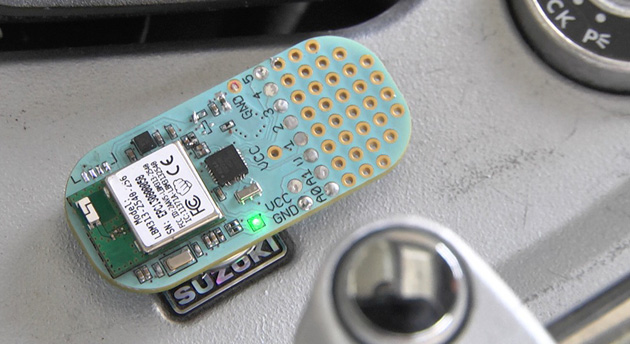
You'll have to plug in a typical Arduino-compatible board at some point in its life, whether it's to add code or just to supply power. Not Punch Through Design's upcoming Cortado, however. The tiny device centers on a custom Bluetooth 4.0 LE module that both enables wireless programming (including through mobile apps) and helps the board last for more than a year on a replaceable watch battery. In fact, the Cortado will already be powered up when you get it -- you can start coding before you've opened the shipping box. It should also be relatively flexible for its size with a built-in accelerometer and the ability to serve as an Apple iBeacon transmitter. Punch Through is crowdfunding the board with hopes of shipping its first units in May. If you're interested, you can pledge $18 to pre-order a Cortado; there's also a helpful promo video after the break.

Filed under: Peripherals

Comments

Via: Make

Source: Punch Through Design

Tutorial – Send email with the Arduino Yún

Introduction

This is the third in a series of tutorials examining various uses of the Arduino Yún. In this article we’ll examine how your Arduino Yún can send email from a Google email account. Doing so gives you a neat and simple method of sending data captured by the Arduino Yún or other notifications.

Getting Started

If you haven’t already done so, ensure your Arduino Yún can connect to your network via WiFi or cable – and get a Temboo account (we run through this here). And you need (at the time of writing) IDE version 1.5.4 which can be downloaded from the Arduino website.

Finally, you will need a Google account to send email from, so if you don’t have one – sign up here. You might want to give your Arduino Yún an email address of its very own.

Testing the Arduino Yún-Gmail connection

In this first example we’ll run through the sketch provided by Temboo so you can confirm everything works as it should. This will send a simple email from your Arduino Yún to another email address. First, copy the following sketch into the IDE but don’t upload it yet:

/*
  SendAnEmail

  Demonstrates sending an email via a Google Gmail account using the Temboo Arduino Yun SDK.

  This example code is in the public domain.
*/

#include <Bridge.h>
#include <Temboo.h>
#include "TembooAccount.h" // contains Temboo account information

/*** SUBSTITUTE YOUR VALUES BELOW: ***/

// Note that for additional security and reusability, you could
// use #define statements to specify these values in a .h file.

// your Gmail username, formatted as a complete email address, eg "bob.smith@gmail.com"
const String GMAIL_USER_NAME = "sender@gmail.com";

// your Gmail password
const String GMAIL_PASSWORD = "gmailpassword";

// the email address you want to send the email to, eg "jane.doe@temboo.com"
const String TO_EMAIL_ADDRESS = "recipient@email.com";

boolean success = false; // a flag to indicate whether we've sent the email yet or not

void setup() {
  Serial.begin(9600);

  // for debugging, wait until a serial console is connected
  delay(4000);
  while(!Serial);

  Bridge.begin();
}

void loop()
{
  // only try to send the email if we haven't already sent it successfully
  if (!success) {

    Serial.println("Running SendAnEmail...");

    TembooChoreo SendEmailChoreo;

    // invoke the Temboo client
    // NOTE that the client must be reinvoked, and repopulated with
    // appropriate arguments, each time its run() method is called.
    SendEmailChoreo.begin();

    // set Temboo account credentials
    SendEmailChoreo.setAccountName(TEMBOO_ACCOUNT);
    SendEmailChoreo.setAppKeyName(TEMBOO_APP_KEY_NAME);
    SendEmailChoreo.setAppKey(TEMBOO_APP_KEY);

    // identify the Temboo Library choreo to run (Google > Gmail > SendEmail)
    SendEmailChoreo.setChoreo("/Library/Google/Gmail/SendEmail");

    // set the required choreo inputs
    // see https://www.temboo.com/library/Library/Google/Gmail/SendEmail/ 
    // for complete details about the inputs for this Choreo

    // the first input is your Gmail email address
    SendEmailChoreo.addInput("Username", GMAIL_USER_NAME);
    // next is your Gmail password.
    SendEmailChoreo.addInput("Password", GMAIL_PASSWORD);
    // who to send the email to
    SendEmailChoreo.addInput("ToAddress", TO_EMAIL_ADDRESS);
    // then a subject line
    SendEmailChoreo.addInput("Subject", "Email subject line here");

     // next comes the message body, the main content of the email   
    SendEmailChoreo.addInput("MessageBody", "Email content");

    // tell the Choreo to run and wait for the results. The 
    // return code (returnCode) will tell us whether the Temboo client 
    // was able to send our request to the Temboo servers
    unsigned int returnCode = SendEmailChoreo.run();

    // a return code of zero (0) means everything worked
    if (returnCode == 0) {
        Serial.println("Success! Email sent!");
        success = true;
    } else {
      // a non-zero return code means there was an error
      // read and print the error message
      while (SendEmailChoreo.available()) {
        char c = SendEmailChoreo.read();
        Serial.print(c);
      }
    } 
    SendEmailChoreo.close();

    // do nothing for the next 60 seconds
    delay(60000);
  }
}

Before uploading you need to enter five parameters – the email address to send the email with, the password for that account, the recipient’s email address, and the email’s subject line and content. These can be found in the following lines in the sketch – for example:

const String GMAIL_USER_NAME = "sender@gmail.com";
const String GMAIL_PASSWORD = "emailpassword";
const String TO_EMAIL_ADDRESS = "recipient@email.com";
SendEmailChoreo.addInput("Subject", "This is the subject line of the email");
SendEmailChoreo.addInput("MessageBody", "And this is the content of the email");

So enter the required data in the fields above. If you’re sending from a Google Apps account instead of a Gmail account – that’s ok, just enter in the sending email address as normal. Temboo and Google will take care of the rest.

Finally, create your header file by copying the the header file data from here (after logging to Temboo) into a text file and saving it with the name TembooAccount.h in the same folder as your sketch from above. You know this has been successful when opening the sketch, as you will see the header file in a second tab, for example:

Now you can upload the sketch, and after a few moments check the recipient’s email account. If all goes well you will be informed by the IDE serial monitor as well (if your Yún is connected via USB). It’s satisfying to see an email come from your Arduino Yún, for example in this short video.

If your email is not coming through, connect your Arduino Yún via USB (if not already done so) and open the serial monitor. It will let you know if there’s a problem in relatively plain English – for example:

Error
A Step Error has occurred: “An SMTP error has occurred. Make sure that your credentials are correct and that you’ve provided a fully qualified Gmail
username (e.g., john.smith@gmail.com) for the Username input. When using Google 2-Step Verification, make sure to
provide an application-specific password. If this problem persists, Google may be restricting access to your account, and you’ll need to
explicitly allow access via gmail.com.”. The error occurred in the Stop (Authentication error) step.
HTTP_CODE
500


So if this happens, check your email account details in the sketch, and try again.

Sending email with customisable subject and content data

The example sketch above is fine if you want to send a fixed message. However what if you need to send some data? That can be easily done. For our example we’ll generate some random numbers, and integrate them into the email subject line and content. This will give you the framework to add your own sensor data to emails from your Arduino Yún. Consider the following sketch:

/*
  SendAnEmail

  Demonstrates sending an email via a Google Gmail account using the Temboo Arduino Yun SDK.

  This example code is in the public domain.
*/

#include <Bridge.h>
#include <Temboo.h>
#include "TembooAccount.h" // contains Temboo account information

/*** SUBSTITUTE YOUR VALUES BELOW: ***/

// Note that for additional security and reusability, you could
// use #define statements to specify these values in a .h file.

// your Gmail username, formatted as a complete email address, eg "bob.smith@gmail.com"
const String GMAIL_USER_NAME = "sender@gmail.com";

// your Gmail password
const String GMAIL_PASSWORD = "gmailpassword";

// the email address you want to send the email to, eg "jane.doe@temboo.com"
const String TO_EMAIL_ADDRESS = "recipient@email.com";

int a,b; // used to store our random numbers
boolean success = false; // a flag to indicate whether we've sent the email yet or not

void setup() 
{
  Serial.begin(9600);
  // for debugging, wait until a serial console is connected
  delay(4000);
  while(!Serial);
  Bridge.begin();
  randomSeed(analogRead(0)); // fire up random number generation
}

void loop()
{
  // generate some random numbers to send in the email
  a = random(1000);
  b = random(1000);
  // compose email subject line into a String called "emailSubject"
  String emailSubject("The random value of a is: ");
  emailSubject += a;
  emailSubject += " and b is: ";
  emailSubject += b;  
  // compose email content into a String called "emailContent"
  String emailContent("This is an automated email from your Arduino Yun. The random value of a is: ");
  emailContent += a;
  emailContent += " and b is: ";
  emailContent += b;  
  emailContent += ". I hope that was of some use for you. Bye for now.";  

  // only try to send the email if we haven't already sent it successfully
  if (!success) {

    Serial.println("Running SendAnEmail...");

    TembooChoreo SendEmailChoreo;

    // invoke the Temboo client
    // NOTE that the client must be reinvoked, and repopulated with
    // appropriate arguments, each time its run() method is called.
    SendEmailChoreo.begin();

    // set Temboo account credentials
    SendEmailChoreo.setAccountName(TEMBOO_ACCOUNT);
    SendEmailChoreo.setAppKeyName(TEMBOO_APP_KEY_NAME);
    SendEmailChoreo.setAppKey(TEMBOO_APP_KEY);

    // identify the Temboo Library choreo to run (Google > Gmail > SendEmail)
    SendEmailChoreo.setChoreo("/Library/Google/Gmail/SendEmail");

    // set the required choreo inputs
    // see https://www.temboo.com/library/Library/Google/Gmail/SendEmail/ 
    // for complete details about the inputs for this Choreo

    // the first input is your Gmail email address
    SendEmailChoreo.addInput("Username", GMAIL_USER_NAME);
    // next is your Gmail password.
    SendEmailChoreo.addInput("Password", GMAIL_PASSWORD);
    // who to send the email to
    SendEmailChoreo.addInput("ToAddress", TO_EMAIL_ADDRESS);
    // then a subject line
    SendEmailChoreo.addInput("Subject", emailSubject); // here we send the emailSubject string as the email subject

     // next comes the message body, the main content of the email   
    SendEmailChoreo.addInput("MessageBody", emailContent); // and here we send the emailContent string

    // tell the Choreo to run and wait for the results. The 
    // return code (returnCode) will tell us whether the Temboo client 
    // was able to send our request to the Temboo servers
    unsigned int returnCode = SendEmailChoreo.run();

    // a return code of zero (0) means everything worked
    if (returnCode == 0) {
        Serial.println("Success! Email sent!");
        success = true;
    } else {
      // a non-zero return code means there was an error
      // read and print the error message
      while (SendEmailChoreo.available()) {
        char c = SendEmailChoreo.read();
        Serial.print(c);
      }
    } 
    SendEmailChoreo.close();

    // do nothing for the next 60 seconds
    delay(60000);
  }
}

Review the first section at the start of void loop(). We have generated two random numbers, and then appended some text and the numbers into two Strings – emailContent and emailSubject.

These are then inserted into the SendEmailChoreo.addInput lines to be the email subject and content. With a little effort you can make a neat email notification, such as shown in this video and the following image from a mobile phone:

Conclusion

It’s no secret that the Yún isn’t the cheapest development board around, however the ease of use as demonstrated in this tutorial shows that the time saved in setup and application is more than worth the purchase price of the board and extra Temboo credits if required.

And if you’re interested in learning more about Arduino, or want to introduce someone else to the interesting world of Arduino – check out my book (now in a third printing!) “Arduino Workshop” from No Starch Press.

In the meanwhile have fun and keep checking into tronixstuff.com. Why not follow things on twitter, Google+, subscribe  for email updates or RSS using the links on the right-hand column? And join our friendly Google Group – dedicated to the projects and related items on this website. Sign up – it’s free, helpful to each other –  and we can all learn something.

The post Tutorial – Send email with the Arduino Yún appeared first on tronixstuff.

Tronixstuff 23 Nov 01:40
arduino  email  gmail  google  iot  lesson  mail  review  send  temboo  tronixstuff  tutorial  wifi  yún  

Arduino Tutorials – Chapter 15 – RFID

Learn how to use RFID readers with your Arduino. In this instalment we use an RDM630 or RDM6300 RFID reader. If you have an Innovations ID-12 or ID-20 RFID reader, we have a different tutorial for you.

This is chapter fifteen of our huge Arduino tutorial series. Updated 19/11/2013

Introduction

RFID – radio frequency identification. Some of us have already used these things, and they have become part of everyday life. For example, with electronic vehicle tolling, door access control, public transport fare systems and so on. It sounds complex – but isn’t.

To explain RFID for the layperson, we can use a key and lock analogy. Instead of the key having a unique pattern, RFID keys hold a series of unique numbers which are read by the lock. It is up to our Arduino sketch to determine what happens when the number is read by the lock.  The key is the tag, card or other small device we carry around or have in our vehicles. We will be using a passive key, which is an integrated circuit and a small aerial. This uses power from a magnetic field associated with the lock. Here are some key or tag examples:

In this tutorial we’ll be using 125 kHz tags – for example. To continue with the analogy our lock is a small circuit board and a loop aerial. This has the capability to read the data on the IC of our key, and some locks can even write data to keys. Here is our reader (lock) example:

These readers are quite small and inexpensive – however the catch is that the loop aerial is somewhat fragile. If you need something much sturdier, consider the ID20 tags used in the other RFID tutorial.

Setting up the RFID reader

This is a short exercise to check the reader works and communicates with the Arduino. You will need:

Simply insert the RFID reader main board into a solderless breadboard as shown below. Then use jumper wires to connect the second and third pins at the top-left of the RFID board to Arduino 5V and GND respectively. The RFID coil connects to the two pins on the top-right (they can go either way). Finally, connect a jumper wire from the bottom-left pin of the RFID board to Arduino digital pin 2:

Next, upload the following sketch to your Arduino and open the serial monitor window in the IDE:

#include <SoftwareSerial.h>
SoftwareSerial RFID(2, 3); // RX and TX

int i;

void setup()
{
  RFID.begin(9600);    // start serial to RFID reader
  Serial.begin(9600);  // start serial to PC 
}

void loop()
{
  if (RFID.available() > 0) 
  {
     i = RFID.read();
     Serial.print(i, DEC);
     Serial.print(" ");
  }
}

If you’re wondering why we used SoftwareSerial – if you connect the data line from the RFID board to the Arduino’s RX pin – you need to remove it when updating sketches, so this is more convenient.

Now start waving RFID cards or tags over the coil. You will find that they need to be parallel over the coil, and not too far away. You can experiment with covering the coil to simulate it being installed behind protective surfaces and so on. Watch this short video which shows the resulting RFID card or tag data being displayed in the Arduino IDE serial monitor.

As you can see from the example video, the reader returns the card’s unique ID number which starts with a 2 and ends with a 3. While you have the sketch operating, read the numbers from your RFID tags and note them down, you will need them for future sketches.

To do anything with the card data, we need to create some functions to retrieve the card number when it is read and place in an array for comparison against existing card data (e.g. a list of accepted cards) so your systems will know who to accept and who to deny. Using those functions, you can then make your own access system, time-logging device and so on.

Let’s demonstrate an example of this. It will check if a card presented to the reader is on an “accepted” list, and if so light a green LED, otherwise light a red LED. Use the hardware from the previous sketch, but add a typical green and red LED with 560 ohm resistor to digital pins 13 and 12 respectively. Then upload the following sketch:

#include <SoftwareSerial.h>
SoftwareSerial RFID(2, 3); // RX and TX

int data1 = 0;
int ok = -1;
int yes = 13;
int no = 12;

// use first sketch in http://wp.me/p3LK05-3Gk to get your tag numbers
int tag1[14] = {2,52,48,48,48,56,54,66,49,52,70,51,56,3};
int tag2[14] = {2,52,48,48,48,56,54,67,54,54,66,54,66,3};
int newtag[14] = { 0,0,0,0,0,0,0,0,0,0,0,0,0,0}; // used for read comparisons

void setup()
{
  RFID.begin(9600);    // start serial to RFID reader
  Serial.begin(9600);  // start serial to PC 
  pinMode(yes, OUTPUT); // for status LEDs
  pinMode(no, OUTPUT);
}

boolean comparetag(int aa[14], int bb[14])
{
  boolean ff = false;
  int fg = 0;
  for (int cc = 0 ; cc < 14 ; cc++)
  {
    if (aa[cc] == bb[cc])
    {
      fg++;
    }
  }
  if (fg == 14)
  {
    ff = true;
  }
  return ff;
}

void checkmytags() // compares each tag against the tag just read
{
  ok = 0; // this variable helps decision-making,
  // if it is 1 we have a match, zero is a read but no match,
  // -1 is no read attempt made
  if (comparetag(newtag, tag1) == true)
  {
    ok++;
  }
  if (comparetag(newtag, tag2) == true)
  {
    ok++;
  }
}

void readTags()
{
  ok = -1;

  if (RFID.available() > 0) 
  {
    // read tag numbers
    delay(100); // needed to allow time for the data to come in from the serial buffer.

    for (int z = 0 ; z < 14 ; z++) // read the rest of the tag
    {
      data1 = RFID.read();
      newtag[z] = data1;
    }
    RFID.flush(); // stops multiple reads

    // do the tags match up?
    checkmytags();
  }

  // now do something based on tag type
  if (ok > 0) // if we had a match
  {
    Serial.println("Accepted");
    digitalWrite(yes, HIGH);
    delay(1000);
    digitalWrite(yes, LOW);

    ok = -1;
  }
  else if (ok == 0) // if we didn't have a match
  {
    Serial.println("Rejected");
    digitalWrite(no, HIGH);
    delay(1000);
    digitalWrite(no, LOW);

    ok = -1;
  }
}

void loop()
{
  readTags();
}

In the sketch we have a few functions that take care of reading and comparing RFID tags. Notice that the allowed tag numbers are listed at the top of the sketch, you can always add your own and more – as long as you add them to the list in the function checkmytags() which determines if the card being read is allowed or to be denied.

The function readTags() takes care of the actual reading of the tags/cards, by placing the currently-read tag number into an array which is them used in the comparison function checkmytags(). Then the LEDs are illuminated depending on the status of the tag at the reader. You can watch a quick demonstration of this example in this short video.

Conclusion

After working through this chapter you should now have a good foundation of knowledge on using the inexpensive RFID readers and how to call functions when a card is successfully read. For example, use some extra hardware (such as an N-MOSFET) to control a door strike, buzzer, etc. Now it’s up to you to use them as a form of input with various access systems, tracking the movement of people or things and much more.

And if you enjoyed the tutorial, or want to introduce someone else to the interesting world of Arduino – check out my book (now in a third printing!) “Arduino Workshop” from No Starch Press.

In the meanwhile have fun and keep checking into tronixstuff.com. Why not follow things on twitter, Google+, subscribe  for email updates or RSS using the links on the right-hand column? And join our friendly Google Group – dedicated to the projects and related items on this website. Sign up – it’s free, helpful to each other –  and we can all learn something.

The post Arduino Tutorials – Chapter 15 – RFID appeared first on tronixstuff.

Arduino Tutorials – Chapter 15 – RFID

Learn how to use RFID readers with your Arduino. In this instalment we use an RDM630 or RDM6300 RFID reader. This is chapter fifteen of our huge Arduino tutorial series. Updated 19/11/2013

Introduction

RFID – radio frequency identification. Some of us have already used these things, and they have become part of everyday life. For example, with electronic vehicle tolling, door access control, public transport fare systems and so on. It sounds complex – but isn’t.

To explain RFID for the layperson, we can use a key and lock analogy. Instead of the key having a unique pattern, RFID keys hold a series of unique numbers which are read by the lock. It is up to our Arduino sketch to determine what happens when the number is read by the lock.  The key is the tag, card or other small device we carry around or have in our vehicles. We will be using a passive key, which is an integrated circuit and a small aerial. This uses power from a magnetic field associated with the lock. Here are some key or tag examples:

In this tutorial we’ll be using 125 kHz tags – for example. To continue with the analogy our lock is a small circuit board and a loop aerial. This has the capability to read the data on the IC of our key, and some locks can even write data to keys. Here is our reader (lock) example:

These readers are quite small and inexpensive – however the catch is that the loop aerial is somewhat fragile. If you need something much sturdier, consider the ID20 tags used in the other RFID tutorial.

Setting up the RFID reader

This is a short exercise to check the reader works and communicates with the Arduino. You will need:

Simply insert the RFID reader main board into a solderless breadboard as shown below. Then use jumper wires to connect the second and third pins at the top-left of the RFID board to Arduino 5V and GND respectively. The RFID coil connects to the two pins on the top-right (they can go either way). Finally, connect a jumper wire from the bottom-left pin of the RFID board to Arduino digital pin 2:

Next, upload the following sketch to your Arduino and open the serial monitor window in the IDE:

#include <SoftwareSerial.h>
SoftwareSerial RFID(2, 3); // RX and TX

int i;

void setup()
{
  RFID.begin(9600);    // start serial to RFID reader
  Serial.begin(9600);  // start serial to PC 
}

void loop()
{
  if (RFID.available() > 0) 
  {
     i = RFID.read();
     Serial.print(i, DEC);
     Serial.print(" ");
  }
}

If you’re wondering why we used SoftwareSerial – if you connect the data line from the RFID board to the Arduino’s RX pin – you need to remove it when updating sketches, so this is more convenient.

Now start waving RFID cards or tags over the coil. You will find that they need to be parallel over the coil, and not too far away. You can experiment with covering the coil to simulate it being installed behind protective surfaces and so on. Watch this short video which shows the resulting RFID card or tag data being displayed in the Arduino IDE serial monitor.

As you can see from the example video, the reader returns the card’s unique ID number which starts with a 2 and ends with a 3. While you have the sketch operating, read the numbers from your RFID tags and note them down, you will need them for future sketches.

To do anything with the card data, we need to create some functions to retrieve the card number when it is read and place in an array for comparison against existing card data (e.g. a list of accepted cards) so your systems will know who to accept and who to deny. Using those functions, you can then make your own access system, time-logging device and so on.

Let’s demonstrate an example of this. It will check if a card presented to the reader is on an “accepted” list, and if so light a green LED, otherwise light a red LED. Use the hardware from the previous sketch, but add a typical green and red LED with 560 ohm resistor to digital pins 13 and 12 respectively. Then upload the following sketch:

#include <SoftwareSerial.h>
SoftwareSerial RFID(2, 3); // RX and TX

int data1 = 0;
int ok = -1;
int yes = 13;
int no = 12;

// use first sketch in http://wp.me/p3LK05-3Gk to get your tag numbers
int tag1[14] = {2,52,48,48,48,56,54,66,49,52,70,51,56,3};
int tag2[14] = {2,52,48,48,48,56,54,67,54,54,66,54,66,3};
int newtag[14] = { 0,0,0,0,0,0,0,0,0,0,0,0,0,0}; // used for read comparisons

void setup()
{
  RFID.begin(9600);    // start serial to RFID reader
  Serial.begin(9600);  // start serial to PC 
  pinMode(yes, OUTPUT); // for status LEDs
  pinMode(no, OUTPUT);
}

boolean comparetag(int aa[14], int bb[14])
{
  boolean ff = false;
  int fg = 0;
  for (int cc = 0 ; cc < 14 ; cc++)
  {
    if (aa[cc] == bb[cc])
    {
      fg++;
    }
  }
  if (fg == 14)
  {
    ff = true;
  }
  return ff;
}

void checkmytags() // compares each tag against the tag just read
{
  ok = 0; // this variable helps decision-making,
  // if it is 1 we have a match, zero is a read but no match,
  // -1 is no read attempt made
  if (comparetag(newtag, tag1) == true)
  {
    ok++;
  }
  if (comparetag(newtag, tag2) == true)
  {
    ok++;
  }
}

void readTags()
{
  ok = -1;

  if (RFID.available() > 0) 
  {
    // read tag numbers
    delay(100); // needed to allow time for the data to come in from the serial buffer.

    for (int z = 0 ; z < 14 ; z++) // read the rest of the tag
    {
      data1 = RFID.read();
      newtag[z] = data1;
    }
    RFID.flush(); // stops multiple reads

    // do the tags match up?
    checkmytags();
  }

  // now do something based on tag type
  if (ok > 0) // if we had a match
  {
    Serial.println("Accepted");
    digitalWrite(yes, HIGH);
    delay(1000);
    digitalWrite(yes, LOW);

    ok = -1;
  }
  else if (ok == 0) // if we didn't have a match
  {
    Serial.println("Rejected");
    digitalWrite(no, HIGH);
    delay(1000);
    digitalWrite(no, LOW);

    ok = -1;
  }
}

void loop()
{
  readTags();
}

In the sketch we have a few functions that take care of reading and comparing RFID tags. Notice that the allowed tag numbers are listed at the top of the sketch, you can always add your own and more – as long as you add them to the list in the function checkmytags() which determines if the card being read is allowed or to be denied.

The function readTags() takes care of the actual reading of the tags/cards, by placing the currently-read tag number into an array which is them used in the comparison function checkmytags(). Then the LEDs are illuminated depending on the status of the tag at the reader. You can watch a quick demonstration of this example in this short video.

Conclusion

After working through this chapter you should now have a good foundation of knowledge on using the inexpensive RFID readers and how to call functions when a card is successfully read. For example, use some extra hardware (such as an N-MOSFET) to control a door strike, buzzer, etc. Now it’s up to you to use them as a form of input with various access systems, tracking the movement of people or things and much more.

And if you enjoyed the tutorial, or want to introduce someone else to the interesting world of Arduino – check out my book (now in a third printing!) “Arduino Workshop” from No Starch Press.

In the meanwhile have fun and keep checking into tronixstuff.com. Why not follow things on twitter, Google+, subscribe  for email updates or RSS using the links on the right-hand column? And join our friendly Google Group – dedicated to the projects and related items on this website. Sign up – it’s free, helpful to each other –  and we can all learn something.

Book – “Arduino Workshop – A Hands-On Introduction with 65 Projects”

Over the last few years you may have noticed a few of my Arduino tutorials, and during this time many people have mentioned that I should write a book. And now thanks to the team from No Starch Press this recommendation has morphed into my book – “Arduino Workshop“:

Now into the third print run, “Arduino Workshop” is one of the few books on the market that can take the reader from zero knowledge to understanding the Arduino development platform, and working with a huge array of add-ons and technologies. And a huge “thank you” to all those who have purchased and supported the book so far.

“Arduino Workshop” offers a professionally-edited and curated path for the beginner to learn with and have fun. It’s a hands-on introduction to Arduino with 65 projects – from simple LED use right through to RFID, Internet connection, wireless data, working with cellular communications, and much more. Plus the reader also learns about electronics, good coding and other interesting topics.

Each project is explained in detail, explaining how the hardware and Arduino code works together. Plus we teach you how to read and understand circuit schematics and use this clear method of describing circuits which prepares the read for further electronics learning.

The reader doesn’t need any expensive tools or workspaces, and all the parts used are available from almost any electronics retailer. Furthermore all of the projects can be finished without soldering, so it’s safe for readers of all ages.

The editing team at No Starch Press, our technical editor Marc Alexander and myself have worked hard to make the book perfect for those without any electronics or Arduino experience at all, and it makes a great gift for someone to get them started. After working through the 65 projects the reader will have gained enough knowledge and confidence to create many things – and to continue researching on their own. Or if you’ve been enjoying the results of my thousands of hours of work here at tronixstuff, you can show your appreciation by ordering a copy for yourself or as a gift. If you’re still not sure, review the table of contents, index and download a sample chapter from the Arduino Workshop website.

Arduino Workshop is available from No Starch Press in printed or DRM-free eBook (PDF, Mobi, and ePub) formats. And the eBooks are also included with the printed orders so you can get started immediately. Furthermore you can also find Arduino Workshop for sale from all the popular booksellers around the globe.

In the meanwhile have fun and keep checking into tronixstuff.com. Why not follow things on twitter, Google+, subscribe  for email updates or RSS using the links on the right-hand column? And join our friendly Google Group – dedicated to the projects and related items on this website. Sign up – it’s free, helpful to each other –  and we can all learn something.

The post Book – “Arduino Workshop – A Hands-On Introduction with 65 Projects” appeared first on tronixstuff.

Tronixstuff 13 Nov 22:17

Touch Board kit combines an Arduino heart with touch sensors, conductive paint

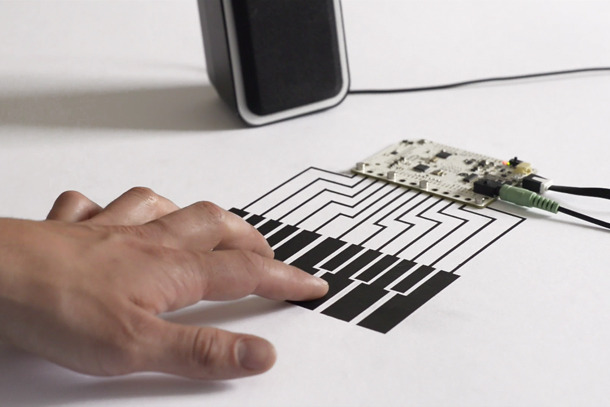
Capacitive sensing isn't limited to your smartphone. In fact, you can use contact with human skin (or any other conductive surface) to trigger almost any circuit. And the Touch Board from Bare Conductive wants you to combine your DIY spirit with the ability to turn practically any surface into a sensor. At the heart is an Arduino compatible microcontroller (based on the Leonardo) with a few extras baked in, including a Freescale touch sensor connected to 12 electrodes and an audio processor for triggering MIDI sounds or MP3 files. While you can simply trigger the electrodes by touching them or connecting them to any conductive material, such as a wire, the Electric Paint Pen really opens up the input possibilities. It's just like a paint marker, often used for small scale graffiti, except it spits out conductive black ink that can turn a wall, a piece of paper or almost anything else into a trigger. In fact, it's preloaded with a bunch of sample sounds on a microSD card so that you can simply paint a soundboard out of the box.

The Kickstarter startup has already more than quadrupled its target funding, but there's still a few days left to get in on the fun. For £45 you can get a Touch Board (with microSD card), an Electric Paint Pen and your choice of either a micro USB cable or a rechargable lithium battery for your untethered projects. And, since its pin compatible with most Arduino shields, you can add even more capabilities to the Touch Board for more complex projects. For example, pop on a relay switch shield, like the one included in the £100 light switch kit, and you can turn your lights on and off or tackle any other high-voltage project on your wishlist. And, since the Electric Paint can also act as a proximity sensor, you could potentially build a dimmer that brightens the room as you bring your hand closer to the wall. For the requisite sales pitch and demo, check out the video after the break.

Filed under: Misc

Comments

Source: Touch Board (Kickstarter)