Posts with «arduino» label

Ninth day of freshman design seminar

The astute reader of this blog may notice that there was no “eighth day of freshman design seminar” post.  I was sick last Wednesday and unable to attend class, so I had the group tutor (a senior in bioengineering) take the class and have them discuss possible projects to take on.  I asked them to turn in proposals yesterday, but forgot to collect them—I’ll collect them tomorrow.  We’re about halfway through the course, so it is time for students to start on their projects.

I returned two homeworks yesterday: the colorimeter design and the RGB LED resistor sizing.

The colorimeter designs were not very good, lacking necessary details, but were somewhat better than previous spectrometer attempts. I think I’ll try reversing the order of those assignments in future, as the colorimeter is a simpler device. The biggest problem with the designs is that most of them were pieced together from web pages, with no citations.  Two of them were blatantly copied from Science Buddies, which has a decent design, but the students did not cite the source. I yelled “Cite your sources!” at the class, and explained that I could have flunked several of them out for plagiarism, and that in an upper-division course I would have. I hope they get the message, so that they don’t fail out later on. I decided not to prosecute academic integrity cases in this 2-unit, optional course, though I am making the science-buddy copyists redo the assignment.

I then explained to students the mistake I had made in the photodiode explanations (see Lying to my students) and corrected the understanding of the “open-circuit voltage” spec from the photodiode datasheets. I think that the students are a little more comfortable about finding things on datasheets now—I hope that lasts for them.

We then went over one of the RGB LED datasheets and did the resistor sizing for it.  About a third of the class had done a decent job on that assignment, and I cleared up the common mistakes:

  • If a battery is used in a schematic, both ends need to be connected.  Other options are to use +5v and Gnd port symbols, or a +5V DC voltage source symbol.
  • The LED diode must be forward biased (with a large current flow), and the triangular shape of the diode symbol shows which way conventional current flows.
  • The voltage needed for determining the resistance is the voltage across the resistor, not the voltage across the diode, so it is 5v–VF, not VF.

I think I managed to get these points across—I relied fairly heavily on asking the students to do each step, so I’m pretty sure that at least half the class can now size a resistor for an LED.

Finally we could get to some new material. I wanted to show them how to program an Arduino, so we built up the standard blinking-LED first example for an Arduino.  To make it a little more interesting, I started with a true statement—I did not know whether the LED on pin 13 was hooked up with the anode or the cathode connected to pin 13.  We looked at the two possible circuits and how they would behave differently when the pin was high and when it was low.  I then explained “void setup()”, “void loop()”, and “pinMode(13,OUTPUT);”.  I had the students come up with the body of loop, feeding them the important constructs (digitalWrite and delay) only once they had expressed the action they wanted.  We ended up with a loop that help pin 13 high for a second and low for ¼ second.  After I typed in the program we had written, I showed them how to select the appropriate board type and download it to the Arduino.  The light blinked, and the students were able to figure out from the pattern of on and off that the LED was connected between pin 13 and GND (with a series resistor), with the anode towards pin 13.

I ran out of time and material at about the same time (a first for this quarter), and assigned the students to read about Arduino programming from the Arduino reference website, with particular attention to “if”, “while”, “pinMode”, “digitalWrite”, “digitalRead”, “analogRead”, and the timer functions.  I expect to go over some analogRead stuff in class tomorrow, and assign a small programming assignment over the weekend, probably using “Serial”.


Filed under: freshman design seminar Tagged: Arduino, bioengineering, colorimeter, engineering education, LED, photodiode

'Fish on Wheels' frees your guppy from the tyranny of the tank (video)

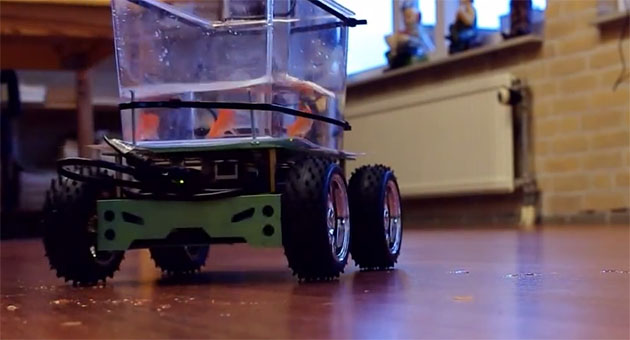
A company called Studio Diip has created a motorized go-cart. For fish. Though "why" is the first question that comes to mind, at this point we're only able to give you the "how." When Little Dory starts to swim in a particular direction, her movement is captured by a top-mounted web cam, processed by a Beagleboard and used to steer the Arduino-controlled carriage under her bowl. As seen in the video after the fold, that lets her follow her muse outside the aquarium's confines. We're hoping this experiment makes it beyond the lab one day, as we're pretty damned curious to see where a fish wants to go. ("Away from the cat" or "towards the ocean" seem like safe bets.)

Filed under: Misc, Transportation

Comments

Source: Studio Diip

I-vs-V plots for base-emitter diodes

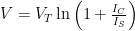
Earlier today I posted a voltage-versus-current curve for a 1N5817 Schottky diode, to confirm the theoretical formula , where IS is the saturation current of the diode:

Fitting over a wide range of currents is more robust than fitting over the narrower range that I can get with just one value for R2.
There is quantization error still on the voltages, but the overlapping current ranges give good data for most of the range. VT is now 26.1mV and IS is 0.91µA.

I also said that I should characterize the base-emitter junction of a PNP and an NPN transistor this way also, for setting the appropriate resistances for the log amplifier in the loudness circuit.  I did that this evening for the S9012 PNP and S9013 NPN transistors:

Base-emitter diode for the S9012 PNP transistor (collector and base connected together). VT is 25.3mV and ISO is 13.4fA.

Characteristics for the base-emitter diode of the S9013 NPN transistor (collector and base connected together). VT is 25.5mV and ISO is 8.85fA.

For both transistors, the region where the logarithmic fit is good is from about 0.5µA to about 50mA (maybe only 35mA for the NPN transistor). That gives about a 100dB working range for a log amplifier, if the largest current corresponds to 50mA. Of course, the op amps that are driving the input of the log amplifier don’t have that much drive capability, and we are probably limited to about 20mA—only a 90dB dynamic range on the log amplifier.


Filed under: Circuits course, Data acquisition Tagged: Arduino, bipolar transistors, i-vs-v-plot, log amplifier

I-vs-V plots for base-emitter diodes

Earlier today I posted a voltage-versus-current curve for a 1N5817 Schottky diode, to confirm the theoretical formula , where IS is the saturation current of the diode:

Fitting over a wide range of currents is more robust than fitting over the narrower range that I can get with just one value for R2.
There is quantization error still on the voltages, but the overlapping current ranges give good data for most of the range. VT is now 26.1mV and IS is 0.91µA.

I also said that I should characterize the base-emitter junction of a PNP and an NPN transistor this way also, for setting the appropriate resistances for the log amplifier in the loudness circuit.  I did that this evening for the S9012 PNP and S9013 NPN transistors:

Base-emitter diode for the S9012 PNP transistor (collector and base connected together). VT is 25.3mV and ISO is 13.4fA.

Characteristics for the base-emitter diode of the S9013 NPN transistor (collector and base connected together). VT is 25.5mV and ISO is 8.85fA.

For both transistors, the region where the logarithmic fit is good is from about 0.5µA to about 50mA (maybe only 35mA for the NPN transistor). That gives about a 100dB working range for a log amplifier, if the largest current corresponds to 50mA. Of course, the op amps that are driving the input of the log amplifier don’t have that much drive capability, and we are probably limited to about 20mA—only a 90dB dynamic range on the log amplifier.


Filed under: Circuits course, Data acquisition Tagged: Arduino, bipolar transistors, i-vs-v-plot, log amplifier

Better I-V plot for Schottky diodes

Yesterday I posted a voltage-versus-current curve for a 1N5817 Schottky diode, to confirm the theoretical formula , where IS is the saturation current of the diode, but I wasn’t really satisfied with the results, either in terms of dynamic range or the quality of the fit.

The voltage does fit nicely to the log of current, with IS=1.32µA and VT=27.1 mV. Given the quantization noise in the voltage measurement, these seem like a pretty good fit to theory. (click to embiggen)

One problem is that the serial variable resistor I used did not all really low currents.  I rewired it today so that I had a potentiometer providing the voltage, rather than a series variable resistor:

I also wrote a little Python program to merge different data files, so that I could combine files in which the resistance of R2 (for measuring the current) differed.

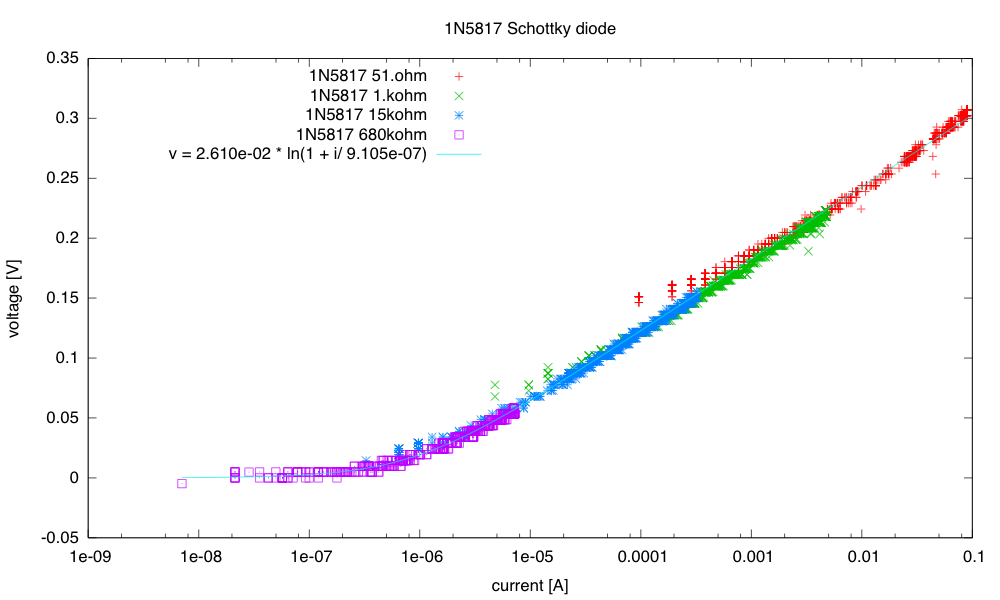
The resulting data fits the model well for over six decades (> 120dB):

Fitting over a wide range of currents is more robust than fitting over the narrower range that I can get with just one value for R2.
There is quantization error still on the voltages, but the overlapping current ranges give good data for most of the range. VT is now 26.1mV and IS is 0.91µA.

The measurements at the high-current end had to be redone with an external power supply for the Leonardo Arduino board (not just USB power), as the reference voltage for the A-to-D converter dipped as the load increased. There is a tiny effect still when using an external power supply, but only at the very highest current level, and it is buried in the noise.

At the low-current end, we can see the flattening of the curve from the “1+” term that is often omitted from the model.  The resolution in the voltage is poor there, but the current knee can be fairly accurately set by using a large value for R2.

I should probably characterize the base-emitter junction of a PNP and an NPN transistor this way also, for setting the appropriate resistances for the log amplifier in the loudness circuit.


Filed under: Circuits course, Data acquisition Tagged: Arduino, i-vs-v-plot, Schottky diode

Better I-V plot for Schottky diodes

Yesterday I posted a voltage-versus-current curve for a 1N5817 Schottky diode, to confirm the theoretical formula , where IS is the saturation current of the diode, but I wasn’t really satisfied with the results, either in terms of dynamic range or the quality of the fit.

The voltage does fit nicely to the log of current, with IS=1.32µA and VT=27.1 mV. Given the quantization noise in the voltage measurement, these seem like a pretty good fit to theory. (click to embiggen)

One problem is that the serial variable resistor I used did not all really low currents.  I rewired it today so that I had a potentiometer providing the voltage, rather than a series variable resistor:

I also wrote a little Python program to merge different data files, so that I could combine files in which the resistance of R2 (for measuring the current) differed.

The resulting data fits the model well for over six decades (> 120dB):

Fitting over a wide range of currents is more robust than fitting over the narrower range that I can get with just one value for R2.
There is quantization error still on the voltages, but the overlapping current ranges give good data for most of the range. VT is now 26.1mV and IS is 0.91µA.

The measurements at the high-current end had to be redone with an external power supply for the Leonardo Arduino board (not just USB power), as the reference voltage for the A-to-D converter dipped as the load increased. There is a tiny effect still when using an external power supply, but only at the very highest current level, and it is buried in the noise.

At the low-current end, we can see the flattening of the curve from the “1+” term that is often omitted from the model.  The resolution in the voltage is poor there, but the current knee can be fairly accurately set by using a large value for R2.

I should probably characterize the base-emitter junction of a PNP and an NPN transistor this way also, for setting the appropriate resistances for the log amplifier in the loudness circuit.


Filed under: Circuits course, Data acquisition Tagged: Arduino, i-vs-v-plot, Schottky diode

Tutorial – Arduino and TFT Color Touch Screen

Learn how to use an inexpensive TFT colour  touch LCD shield with your Arduino. This is chapter twenty-nine of our huge Arduino tutorial series.

Updated 07/02/2014

There are many colour LCDs on the market that can be used with an Arduino, and in this tutorial we’ll explain how to use a model that is easy to use, has a touch screen, doesn’t waste all your digital output pins – and won’t break the bank. It’s the 2.8″ TFT colour touch screen shield from Tronixlabs:

And upside down:

As you can imagine, it completely covers an Arduino Uno or compatible board, and offers a neat way to create a large display or user-interface.  The display has a resolution of 320 x 240 pixels, supports up to 65536 colours and draws around 250mA of current from the Arduino’s internal 5V supply. 

And unlike other colour LCDs, this one doesn’t eat up all your digital output pins – it uses the SPI bus for the display (D10~D13), and four analogue pins (A0~A3) if you use the touch sensor. However if you also use the onboard microSD socket more pins will be required. 

With some imagination, existing Arduino knowledge and the explanation within you’ll be creating all sorts of displays and interfaces in a short period of time. Don’t be afraid to experiment!

Getting started

Setting up the hardware is easy – just plug the shield on your Arduino. Next, download the library bundle from here. Inside the .zip file is two folders – both which need to be copied into your …Arduino-1.0.xlibraries folder. Then you will need to rename the folder “TFT_Touch” to “TFT”. You will notice that the Arduino IDE already contains a library folder called TFT, so rename or move it.

Now let’s test the shield so you know it works, and also to have some quick fun. Upload the paint example included in the TFT library – then with a stylus or non-destructive pointer, you can select colour and draw on the LCD – as shown in this video. At this point we’d like to note that you should be careful with the screen – it doesn’t have a protective layer.

Afraid the quality of our camera doesn’t do the screen any justice, however the still image looks better:

Using the LCD 

Moving on, let’s start with using the display. In your sketches the following libraries need to be included using the following lines before void setup():

#include <stdint.h>
#include <TFTv2.h>
#include <SPI.h>

… and then the TFT library is initialised in void setup()

Tft.TFTinit();

Now you can use the various functions to display text and graphics. However you first need to understand how to define colours.

Defining colours

Functions with a colour parameter can accept one of the ten ten predefined colours – RED, GREEN, BLUE, BLACK, YELLOW, WHITE, CYAN, BRIGHT_RED, GRAY1 and GRAY2, or you can create your own colour value. Colours are defined with 16-but numbers in hexadecimal form, with 5 bits for red, 6 for green and 5 for blue – all packed together. For example – in binary:

MSB > RRRRRGGGGGGRRRRR < LSB

These are called RGB565-formatted numbers – and we use these in hexadecimal format with our display. So black will be all zeros, then converted to hexadecimal; white all ones, etc. The process of converting normal RGB values to RGB565 would give an aspirin a headache, but instead thanks to Henning Karlsen you can use his conversion tool to do the work for you. Consider giving Henning a donation for his efforts.

Displaying text

There are functions to display characters, strings of text, integers and float variables:

  Tft.drawChar(char, x, y, size, colour);          // displays single character variables
  Tft.drawString(string, x, y, size, colour);      // displays arrays of characters
  Tft.drawNumber(integer, x, y, size, colour);     // displays integers
  Tft.drawFloat(float, x, y, size, colour);        // displays floating-point numbers

In each of the functions, the first parameter is the variable or data to display; x and y are the coordinates of the top-left of the first character being displayed; and colour is either the predefined colour as explained previously, or the hexadecimal value for the colour you would like the text to be displayed in – e.g. 0xFFE0 is yellow.

The drawFloat() function is limited to two decimal places, however you can increase this if necessary. To do so, close the Arduino IDE if running, open the file TFTv2.cpp located in the TFT library folder – and search for the line:

INT8U decimal=2;

… then change the value to the number of decimal places you require. We have set ours to four with success, and the library will round out any more decimal places. To see these text display functions in action,  upload the following sketch:

#include <stdint.h>
#include <TFTv2.h>
#include <SPI.h>

char ascii = 'a';
char h1[] = "Hello";
char h2[] = "world";
float f1 = 3.12345678;

void setup()
{
  Tft.TFTinit(); 
}

void loop()
{
  Tft.drawNumber(12345678, 0, 0, 1, 0xF800);
  Tft.drawChar(ascii,0, 20,2, BLUE);
  Tft.drawString(h1,0, 50,3,YELLOW);
  Tft.drawString(h2,0, 90,4,RED);  
  Tft.drawFloat(f1, 4, 0, 140, 2, BLUE);      
}

… which should result in the following:

To clear the screen

To set the screen back to all black, use:

Tft.fillScreen();

Graphics functions

There are functions to draw individual pixels, circles, filled circles, lines, rectangles and filled rectangles. With these and a little planning you can create all sorts of images and diagrams. The functions are:

Tft.setPixel(x, y, COLOUR);                  
// set a pixel at x,y of colour COLOUR

Tft.drawLine(x1, y1, x2, y2, COLOUR);        
// draw a line from x1, y1 to x2, y2 of colour COLOUR

Tft.drawCircle(x, y, r, COLOUR);             
// draw a circle with centre at x, y and radius r of colour COLOUR

Tft.fillCircle(x, y, r, COLOUR);             
// draw a filled circle with centre at x, y and radius r of colour COLOUR

Tft.drawRectangle(x1, y1, x2, y2 ,COLOUR);   
// draw a rectangle from x1, y1 (top-left corner) to x2, y2 (bottom-right corner) of colour COLOUR

Tft.Tft.fillRectangle(x1, y1, x2, y2 ,COLOUR);   
// draw a filled rectangle from x1, y1 (top-left corner) to x2, y2 (bottom-right corner) of colour COLOUR

The following sketch demonstrates the functions listed above:

#include <stdint.h>
#include <TFTv2.h>
#include <SPI.h>

int x, y, x1, x2, y1, y2, r;

void setup()
{
  randomSeed(analogRead(0));
  Tft.TFTinit(); 
}
void loop()
{
  // random pixels
  for (int i=0; i<500; i++)
  {
    y=random(320);
    x=random(240);
    Tft.setPixel(x, y, YELLOW);
    delay(5);
  }
  delay(1000); 
  Tft.fillScreen(); // clear screen

    // random lines
  for (int i=0; i<50; i++)
  {
    y1=random(320);
    y2=random(320);    
    x1=random(240);
    x2=random(240);    
    Tft.drawLine(x1, y1, x2, y2, RED);   
    delay(10);
  }
  delay(1000); 
  Tft.fillScreen(); // clear screen

    // random circles
  for (int i=0; i<50; i++)
  {
    y=random(320);
    x=random(240);
    r=random(50);
    Tft.drawCircle(x, y, r, BLUE); 
    delay(10);
  }
  delay(1000); 
  Tft.fillScreen(); // clear screen

    // random filled circles
  for (int i=0; i<10; i++)
  {
    y=random(320);
    x=random(240);
    r=random(50);
    Tft.fillCircle(x, y, r, GREEN); 
    delay(250);
    Tft.fillCircle(x, y, r, BLACK);     
  }
  delay(1000); 
  Tft.fillScreen(); // clear screen

    // random rectangles
  for (int i=0; i<50; i++)
  {
    y1=random(320);
    y2=random(320);    
    x1=random(240);
    x2=random(240);    
    Tft.drawRectangle(x1, y1, x2, y2, WHITE);   
    delay(10);
  }
  delay(1000); 
  Tft.fillScreen(); // clear screen

    // random filled rectangles
  for (int i=0; i<10; i++)
  {
    y1=random(320);
    y2=random(320);    
    x1=random(240);
    x2=random(240);    
    Tft.fillRectangle(x1, y1, x2, y2, RED);   
    delay(250);
    Tft.fillRectangle(x1, y1, x2, y2, BLACK);       
  }
  delay(1000); 
  Tft.fillScreen(); // clear screen
}

… with the results shown in this video.

Using the touch screen

The touch screen operates in a similar manner to the other version documented earlier, in that it is a resistive touch screen and we very quickly apply voltage to one axis then measure the value with an analogue pin, then repeat the process for the other axis.

You can use the method in that chapter, however with our model you can use a touch screen library, and this is included with the library .zip file you downloaded at the start of this tutorial.

The library does simplify things somewhat, so without further ado upload the touchScreen example sketch included with the library. Open the serial monitor then start touching the screen. The coordinates of the area over a pixel being touch will be returned, along with the pressure – as shown in this video.

Take note of the pressure values, as these need to be considered when creating projects. If you don’t take pressure into account, there could be false positive touches detected which could cause mayhem in your project.

Now that you have a very simple method to determine the results of which part of the screen is being touched – you can create sketches to take action depending on the touch area. Recall from the example touch sketch that the x and y coordinates were mapped into the variables p.x and p.y, with the pressure mapped to p.z. You should experiment with your screen to determine which pressure values work for you.

In the following example, we don’t trigger a touch unless the pressure value p.z is greater than 300. Let’s create a simple touch-switch, with one half of the screen for ON and the other half for OFF. Here is the sketch:

#include <stdint.h>
#include <TFTv2.h>
#include <SPI.h>
#include <TouchScreen.h> 

// determine the pins connected to the touch screen hardware
// A0~A3
#define YP A2   // must be an analog pin, use "An" notation!
#define XM A1   // must be an analog pin, use "An" notation!
#define YM 14   // can be a digital pin, this is A0
#define XP 17   // can be a digital pin, this is A3 

#define TS_MINX 116*2
#define TS_MAXX 890*2
#define TS_MINY 83*2
#define TS_MAXY 913*2

// For better pressure precision, we need to know the resistance
// between X+ and X- Use any multimeter to read it
// The 2.8" TFT Touch shield has 300 ohms across the X plate
TouchScreen ts = TouchScreen(XP, YP, XM, YM);

void setup() 
{
  Serial.begin(9600);
  Tft.TFTinit(); 
  Tft.fillScreen(); // clear screen
}

void loop() 
{
  // a point object holds x y and z coordinates
  Point p = ts.getPoint();
  p.x = map(p.x, TS_MINX, TS_MAXX, 0, 240);
  p.y = map(p.y, TS_MINY, TS_MAXY, 0, 320);
  Serial.println(p.y);
  if (p.y < 160 && p.z > 300) // top half of screen?
  {
    // off
    Tft.fillCircle(120, 160, 100, BLACK);     
    Tft.drawCircle(120, 160, 100, BLUE); 
  } else if (p.y >= 160 && p.z > 300)
  {
    // on
    Tft.fillCircle(120, 160, 100, BLUE); 
  }
}

What’s happening here? We divided the screen into two halves (well not physically…) and consider any touch with a y-value of less than 160 to be the off area, and the rest of the screen to be the on area. This is tested in the two if functions – which also use an and (“&&”) to check the pressure. If the pressure is over 300 (remember, this could be different for you) – the touch is real and the switch is turned on or off.

… and a quick demonstration video of this in action.

Displaying images from a memory card

We feel this warrants a separate tutorial, however if you can’t wait – check out the demo sketch which includes some example image files to use.

Conclusion

By now I hope you have the answer to “how do you use a touch screen LCD with Arduino?” and had some fun learning with us. You can get your LCD from Tronixlabs. And if you enjoyed this article, or want to introduce someone else to the interesting world of Arduino – check out my book (now in a third printing!) “Arduino Workshop”.

Have fun and keep checking into tronixstuff.com. Why not follow things on twitter, Google+, subscribe  for email updates or RSS using the links on the right-hand column, or join our forum – dedicated to the projects and related items on this website. Sign up – it’s free, helpful to each other –  and we can all learn something.

Tutorial – Arduino and TFT Color Touch Screen

Learn how to use an inexpensive TFT colour  touch LCD shield with your Arduino. This is chapter twenty-nine of our huge Arduino tutorial series.

Updated 07/02/2014

There are many colour LCDs on the market that can be used with an Arduino, and in this tutorial we’ll explain how to use a model that is easy to use, has a touch screen, doesn’t waste all your digital output pins – and won’t break the bank. It’s the 2.8″ TFT colour touch screen shield from Tronixlabs:

And upside down:

As you can imagine, it completely covers an Arduino Uno or compatible board, and offers a neat way to create a large display or user-interface.  The display has a resolution of 320 x 240 pixels, supports up to 65536 colours and draws around 250mA of current from the Arduino’s internal 5V supply. 

And unlike other colour LCDs, this one doesn’t eat up all your digital output pins – it uses the SPI bus for the display (D10~D13), and four analogue pins (A0~A3) if you use the touch sensor. However if you also use the onboard microSD socket more pins will be required. 

With some imagination, existing Arduino knowledge and the explanation within you’ll be creating all sorts of displays and interfaces in a short period of time. Don’t be afraid to experiment!

Getting started

Setting up the hardware is easy – just plug the shield on your Arduino. Next, download the library bundle from here. Inside the .zip file is two folders – both which need to be copied into your …\Arduino-1.0.x\libraries folder. Then you will need to rename the folder “TFT_Touch” to “TFT”. You will notice that the Arduino IDE already contains a library folder called TFT, so rename or move it.

Now let’s test the shield so you know it works, and also to have some quick fun. Upload the paint example included in the TFT library – then with a stylus or non-destructive pointer, you can select colour and draw on the LCD – as shown in this video. At this point we’d like to note that you should be careful with the screen – it doesn’t have a protective layer.

Afraid the quality of our camera doesn’t do the screen any justice, however the still image looks better:

Using the LCD 

Moving on, let’s start with using the display. In your sketches the following libraries need to be included using the following lines before void setup():

#include <stdint.h>
#include <TFTv2.h>
#include <SPI.h>

… and then the TFT library is initialised in void setup()

Tft.TFTinit();

Now you can use the various functions to display text and graphics. However you first need to understand how to define colours.

Defining colours

Functions with a colour parameter can accept one of the ten ten predefined colours – RED, GREEN, BLUE, BLACK, YELLOW, WHITE, CYAN, BRIGHT_RED, GRAY1 and GRAY2, or you can create your own colour value. Colours are defined with 16-but numbers in hexadecimal form, with 5 bits for red, 6 for green and 5 for blue – all packed together. For example – in binary:

MSB > RRRRRGGGGGGRRRRR < LSB

These are called RGB565-formatted numbers – and we use these in hexadecimal format with our display. So black will be all zeros, then converted to hexadecimal; white all ones, etc. The process of converting normal RGB values to RGB565 would give an aspirin a headache, but instead thanks to Henning Karlsen you can use his conversion tool to do the work for you. Consider giving Henning a donation for his efforts.

Displaying text

There are functions to display characters, strings of text, integers and float variables:

Tft.drawChar(char, x, y, size, colour);          // displays single character variables
  Tft.drawString(string, x, y, size, colour);      // displays arrays of characters
  Tft.drawNumber(integer, x, y, size, colour);     // displays integers
  Tft.drawFloat(float, x, y, size, colour);        // displays floating-point numbers

In each of the functions, the first parameter is the variable or data to display; x and y are the coordinates of the top-left of the first character being displayed; and colour is either the predefined colour as explained previously, or the hexadecimal value for the colour you would like the text to be displayed in – e.g. 0xFFE0 is yellow.

The drawFloat() function is limited to two decimal places, however you can increase this if necessary. To do so, close the Arduino IDE if running, open the file TFTv2.cpp located in the TFT library folder – and search for the line:

INT8U decimal=2;

… then change the value to the number of decimal places you require. We have set ours to four with success, and the library will round out any more decimal places. To see these text display functions in action,  upload the following sketch:

#include <stdint.h>
#include <TFTv2.h>
#include <SPI.h>

char ascii = 'a';
char h1[] = "Hello";
char h2[] = "world";
float f1 = 3.12345678;

void setup()
{
  Tft.TFTinit(); 
}

void loop()
{
  Tft.drawNumber(12345678, 0, 0, 1, 0xF800);
  Tft.drawChar(ascii,0, 20,2, BLUE);
  Tft.drawString(h1,0, 50,3,YELLOW);
  Tft.drawString(h2,0, 90,4,RED);  
  Tft.drawFloat(f1, 4, 0, 140, 2, BLUE);      
}

… which should result in the following:

To clear the screen

To set the screen back to all black, use:

Tft.fillScreen();

Graphics functions

There are functions to draw individual pixels, circles, filled circles, lines, rectangles and filled rectangles. With these and a little planning you can create all sorts of images and diagrams. The functions are:

Tft.setPixel(x, y, COLOUR);                  
// set a pixel at x,y of colour COLOUR

Tft.drawLine(x1, y1, x2, y2, COLOUR);        
// draw a line from x1, y1 to x2, y2 of colour COLOUR

Tft.drawCircle(x, y, r, COLOUR);             
// draw a circle with centre at x, y and radius r of colour COLOUR

Tft.fillCircle(x, y, r, COLOUR);             
// draw a filled circle with centre at x, y and radius r of colour COLOUR

Tft.drawRectangle(x1, y1, x2, y2 ,COLOUR);   
// draw a rectangle from x1, y1 (top-left corner) to x2, y2 (bottom-right corner) of colour COLOUR

Tft.Tft.fillRectangle(x1, y1, x2, y2 ,COLOUR);   
// draw a filled rectangle from x1, y1 (top-left corner) to x2, y2 (bottom-right corner) of colour COLOUR

The following sketch demonstrates the functions listed above:

#include <stdint.h>
#include <TFTv2.h>
#include <SPI.h>

int x, y, x1, x2, y1, y2, r;

void setup()
{
  randomSeed(analogRead(0));
  Tft.TFTinit(); 
}
void loop()
{
  // random pixels
  for (int i=0; i<500; i++)
  {
    y=random(320);
    x=random(240);
    Tft.setPixel(x, y, YELLOW);
    delay(5);
  }
  delay(1000); 
  Tft.fillScreen(); // clear screen

    // random lines
  for (int i=0; i<50; i++)
  {
    y1=random(320);
    y2=random(320);    
    x1=random(240);
    x2=random(240);    
    Tft.drawLine(x1, y1, x2, y2, RED);   
    delay(10);
  }
  delay(1000); 
  Tft.fillScreen(); // clear screen

    // random circles
  for (int i=0; i<50; i++)
  {
    y=random(320);
    x=random(240);
    r=random(50);
    Tft.drawCircle(x, y, r, BLUE); 
    delay(10);
  }
  delay(1000); 
  Tft.fillScreen(); // clear screen

    // random filled circles
  for (int i=0; i<10; i++)
  {
    y=random(320);
    x=random(240);
    r=random(50);
    Tft.fillCircle(x, y, r, GREEN); 
    delay(250);
    Tft.fillCircle(x, y, r, BLACK);     
  }
  delay(1000); 
  Tft.fillScreen(); // clear screen

    // random rectangles
  for (int i=0; i<50; i++)
  {
    y1=random(320);
    y2=random(320);    
    x1=random(240);
    x2=random(240);    
    Tft.drawRectangle(x1, y1, x2, y2, WHITE);   
    delay(10);
  }
  delay(1000); 
  Tft.fillScreen(); // clear screen

    // random filled rectangles
  for (int i=0; i<10; i++)
  {
    y1=random(320);
    y2=random(320);    
    x1=random(240);
    x2=random(240);    
    Tft.fillRectangle(x1, y1, x2, y2, RED);   
    delay(250);
    Tft.fillRectangle(x1, y1, x2, y2, BLACK);       
  }
  delay(1000); 
  Tft.fillScreen(); // clear screen
}

… with the results shown in this video.

Using the touch screen

The touch screen operates in a similar manner to the other version documented earlier, in that it is a resistive touch screen and we very quickly apply voltage to one axis then measure the value with an analogue pin, then repeat the process for the other axis.

You can use the method in that chapter, however with our model you can use a touch screen library, and this is included with the library .zip file you downloaded at the start of this tutorial.

The library does simplify things somewhat, so without further ado upload the touchScreen example sketch included with the library. Open the serial monitor then start touching the screen. The coordinates of the area over a pixel being touch will be returned, along with the pressure – as shown in this video.

Take note of the pressure values, as these need to be considered when creating projects. If you don’t take pressure into account, there could be false positive touches detected which could cause mayhem in your project.

Now that you have a very simple method to determine the results of which part of the screen is being touched – you can create sketches to take action depending on the touch area. Recall from the example touch sketch that the x and y coordinates were mapped into the variables p.x and p.y, with the pressure mapped to p.z. You should experiment with your screen to determine which pressure values work for you.

In the following example, we don’t trigger a touch unless the pressure value p.z is greater than 300. Let’s create a simple touch-switch, with one half of the screen for ON and the other half for OFF. Here is the sketch:

#include <stdint.h>
#include <TFTv2.h>
#include <SPI.h>
#include <TouchScreen.h> 

// determine the pins connected to the touch screen hardware
// A0~A3
#define YP A2   // must be an analog pin, use "An" notation!
#define XM A1   // must be an analog pin, use "An" notation!
#define YM 14   // can be a digital pin, this is A0
#define XP 17   // can be a digital pin, this is A3 

#define TS_MINX 116*2
#define TS_MAXX 890*2
#define TS_MINY 83*2
#define TS_MAXY 913*2

// For better pressure precision, we need to know the resistance
// between X+ and X- Use any multimeter to read it
// The 2.8" TFT Touch shield has 300 ohms across the X plate
TouchScreen ts = TouchScreen(XP, YP, XM, YM);

void setup() 
{
  Serial.begin(9600);
  Tft.TFTinit(); 
  Tft.fillScreen(); // clear screen
}

void loop() 
{
  // a point object holds x y and z coordinates
  Point p = ts.getPoint();
  p.x = map(p.x, TS_MINX, TS_MAXX, 0, 240);
  p.y = map(p.y, TS_MINY, TS_MAXY, 0, 320);
  Serial.println(p.y);
  if (p.y < 160 && p.z > 300) // top half of screen?
  {
    // off
    Tft.fillCircle(120, 160, 100, BLACK);     
    Tft.drawCircle(120, 160, 100, BLUE); 
  } else if (p.y >= 160 && p.z > 300)
  {
    // on
    Tft.fillCircle(120, 160, 100, BLUE); 
  }
}

What’s happening here? We divided the screen into two halves (well not physically…) and consider any touch with a y-value of less than 160 to be the off area, and the rest of the screen to be the on area. This is tested in the two if functions – which also use an and (“&&”) to check the pressure. If the pressure is over 300 (remember, this could be different for you) – the touch is real and the switch is turned on or off.

… and a quick demonstration video of this in action.

Displaying images from a memory card

We feel this warrants a separate tutorial, however if you can’t wait – check out the demo sketch which includes some example image files to use.

Conclusion

By now I hope you have the answer to “how do you use a touch screen LCD with Arduino?” and had some fun learning with us. You can get your LCD from Tronixlabs. And if you enjoyed this article, or want to introduce someone else to the interesting world of Arduino – check out my book (now in a third printing!) “Arduino Workshop”.

Have fun and keep checking into tronixstuff.com. Why not follow things on twitter, Google+, subscribe  for email updates or RSS using the links on the right-hand column, or join our forum – dedicated to the projects and related items on this website. Sign up – it’s free, helpful to each other –  and we can all learn something.

The post Tutorial – Arduino and TFT Color Touch Screen appeared first on tronixstuff.

Seventh day of freshman design seminar

Today we continued looking at photodiodes, phototransistors, and LEDs, in the context of the colorimeter I had asked them to design.  I think that next year I may go to the colorimeter first, and then to the more complex photospectrometer.  Since the students weren’t familiar with spectrometry, starting with it was of no help, and all the other concepts (absorbance, irradiance, linearity of phototransistors, …) are more than enough to start with.

I started the class by collecting the work I had asked them to do on fleshing out the design of the colorimeter, which I have not read yet. I’ll have to grade their colorimeter designs before Wednesday, but I hope we can start learning some Arduino programming by then (probably just setup, loop, analogRead, Serial.print, and delay), rather than going over the homework.

After reading what they turned in for photospectrometer and photodiode assignment, I’m not setting my expectations very high for the colorimeters.  I think (hope?) that the students are getting something out of the class, if not quite as quickly as I would like. I guess it takes some time for them to turn around habits of a lifetime and start generating new answers and new questions to answer, rather than just coughing back what the teacher said.

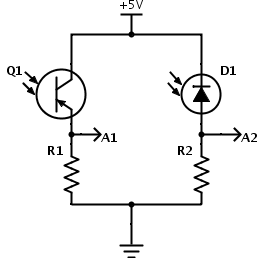
I wanted to get to Arduino programming today, but we didn’t get that far. I started with going over the homework, which was to find the resistor values for the following circuit:

Simple circuits for measuring light with an Arduino. Update 2014 Feb 6: Q1 is intended to be an NPN phototransistor, not PNP as shown here!

  • For Monday, 2014 Jan 27, as individuals (not groups), find a data sheet for the phototransistor WP3DP3BT. Also, select a cheap photodiode that is available in the same size and shape of package as the WP3DP3BT phototransistor and look up its data sheet.For the photodiode and the phototransistor, report the dark current, the voltage drop across the device (that would be collector-emitter saturation voltage for a phototransistor and the open-circuit voltage for a photodiode), and the sensitivity (current at 1mW/cm2 at λ=940nm, which is the wavelength where silicon photodiodes and phototransistors are most sensitive).Find a plot of the spectral sensitivity of a silicon photodiode or phototransistor (it need not be from the data sheets you found—all the silicon photodiodes and phototransistors have similar properties, unless the packaging they are in filters the light).

    We want to make a circuit so that the full-scale (5v) reading on the Arduino corresponds to an irradiance of 204.8μW/cm2 at 940nm, so that each of the 1024 steps corresponds to an increment of 0.2μW/cm2. Remember that 1000μW=1mW. (We may not be able to use the full range, as the circuit should saturate at a somewhat lower value, depending on the saturation voltage or open-circuit voltage of the photodetector.)

    For the circuits above, figure out what values of R1 and R2 to use to get the desired voltage range at A1 or A2. Look up what standard resistance values are available with 2% tolerance, and pick the nearest one. (Hint: Google is your friend for finding tables of information.)

    In class on Monday, we’ll try building this circuit and seeing how it works with the Arduino Data Logger.

  • By Wed 2014 Jan 29, redo the homework originally due on Monday, and turn it in on paper, typed, with the questions echoed and answered in full sentences. If you have any questions, discuss them on the class e-mail list. (I don’t want “I don’t know” to come up for the first time in class—you should have been asking for help over the weekend!)

The first thing I did in class was to go over that homework, giving them useful advice for adapting to college courses:

  • No one computed R2 correctly. It didn’t bother me (much) that no one knew how to do it, but it did bother me that no one asked for help. I tried to impress on them that asking for explanation is not a sign of weakness, and that it should not be their goal to hide from view when they are confused about something. I don’t know whether this rant got through to them, but maybe if they hear it enough they’ll start asking questions in class or on the e-mail list.
  • Only one person cited a source for the plot of spectral sensitivity for silicon photodiodes, and that more by accident than by design (the URL was printed by the browser). I explained the notion of plagiarism to them, how it was the most serious of academic sins, and how other engineering faculty (and me in other courses) might fail them for the course if they continued to claim other people’s work as their own (which is what an uncited figure is).
  • I told them that they had to get very comfortable with the metric prefixes (only femto, pico, nano, micro, milli, kilo, mega, giga—they mostly won’t have much use for the smaller and larger ones) and their single-letter abbreviations.  This is clearly something they need to work on, as one of the common problems in the homework was off-by-a-factor-of-1000 errors, as students changed µW to mW without scaling the numbers.
  • I also impressed on them the importance of typing part numbers accurately—several had mistyped the part numbers for the photodiode they were specifying, and it took me a little detective work to figure out what they had really meant.  Some had not provided part numbers at all, and I could not check whether their numbers were right (those students still got the computations wrong).
  • Only three students found photodiodes that matched the specs: “a cheap photodiode that is available in the same size and shape of package as the WP3DP3BT phototransistor ” and that was sensitive to visible light.  That meant finding a 3mm diameter, through-hole package.
  • Several students found photodiodes in black packages that block visible light, which was not useful for this application.  I explained why such parts exist (listening to IR emitters like in remote controls, without being swamped by ordinary light).
  • Many students, having found photodiodes, could not accurately specify the sensitivity of the photodiode.  Most just reported a current, without specifying the irradiance that caused that current. We went over the notion of linearity and that what we were interested in was the slope of the line, and that units were µA/(mW/cm^2). I mentioned that some spec sheets specified responsivity in A/W, but that had to be divided by the sensor area to get the more useful unit. I then had them compute the current at the specified maximum irradiance and the resistance that would be needed to get that current with 5v across the resistor.  It took them a very long time (algebra skills are much lower than I would have expected for college freshmen—I have more sympathy now for the teachers of freshman physics), but they did eventually get the right answers for both the current and the resistance.
  • I spent a fair amount of time letting students know that units were their friends, and that they should carry the units throughout the computation.  I don’t know if the message got through, but I hope for their sakes that it will eventually.

Finally we could get to some new material. I asked them about monochromatic light sources for the colorimeter.  Some thought of LEDs, but one student mentioned that he had seen incandescent bulbs as much cheaper than LEDs. It took me a second to figure out where this confusion came from—at the power levels used for room lighting, incandescents are indeed cheap and LEDs expensive.  But we don’t need 5–20W of power—we’re not trying to cook what is in the cuvette.  I pointed out that the maximum light level expected for the phototransistor was only 20mW/cm^2, so we needed only mW of power from the light, and at that light level, LEDs were much cheaper than incandescent bulbs.

I showed them the data sheet for a red LED,  and explained some of the concepts. One concept was the difference between peak and dominant wavelength—the peak is where the light has the highest intensity, and the dominant is where it shifts to when multiplied by human visual sensitivity.  I also explained what the “spectral line half bandwidth” was, though I did not go into the difference between half amplitude and half power—it was not important at the moment.

I then went over the symbol for a diode, how I remember that electrons move from the cathode to the anode (bring up vacuum tubes and cathode rays), and showing them a rough sketch of a diode current-vs-voltage curve.  I showed them where various parameters were on the data sheet, though the particular LED data sheet I was using did not include the threshold voltage, just the forward voltage at high current.

The students brought up the notion of having multiple LEDs to get multiple colors, so I introduced them to  RGB LEDs, showing both the common-anode and common-cathode circuits. They figured out, with a lot of prompting, which way round power had to be connected (the mnemonic device I used was that producing light required power, and power is voltage times current, so there had to be current flowing through the diode).

It doesn’t help that photodiodes are used backwards—the photodiode is reverse biased, and current flows only when light produces electron-hole pairs at the back-biased junction.  I carefully did not talk about that while we were looking at the LEDs, as I’m sure it would have confused them.

By this point we were almost out of time, so I assigned a homework:

For Wed 2014 Feb 5, find a through-hole (not surface mount) RGB LED that is common-cathode, and design a circuit to power it from a +5V power supply. Make each color be as bright as possible without exceeding maximum current (you can leave a safety margin of up to 25%). Explain your design and how you sized the resistors for it.

I recommend using Digi-key’s search feature (looking for RGB LED) to see what parameters are usually most important to designers. I recommend using Digi-key’s free web tool SchemeIt for drawing a circuit diagram. They don’t have an RGB LED symbol, but you can make one out of 3 LED symbols (I’d use variant 1 for that).

Bonus: find an RGB LED that is common-anode, and do the same design exercise with it. (If Digi-Key’s search doesn’t turn up a part, try using Google.)

I did show them the prototype colorimeter I made over the weekend out of black foamcore, but did not have time to demo it. I was also going to demonstrate the use of vernier calipers to measure the cuvettes, but again ran out of time.  I’ll probably do a blog post about my first colorimeter prototype later this week, but I’ll need to get to bed early tonight, as I’m grading an elementary school science fair early tomorrow, and I’ve got a bad cold that is leaving me exhausted.  (I’ll have another science fair to judge Thursday morning, so this is not a good week for me to have a cold.)


Filed under: freshman design seminar Tagged: Arduino, bioengineering, colorimeter, engineering education, photodiode, phototransistor

Seventh day of freshman design seminar

Today we continued looking at photodiodes, phototransistors, and LEDs, in the context of the colorimeter I had asked them to design.  I think that next year I may go to the colorimeter first, and then to the more complex photospectrometer.  Since the students weren’t familiar with spectrometry, starting with it was of no help, and all the other concepts (absorbance, irradiance, linearity of phototransistors, …) are more than enough to start with.

I started the class by collecting the work I had asked them to do on fleshing out the design of the colorimeter, which I have not read yet. I’ll have to grade their colorimeter designs before Wednesday, but I hope we can start learning some Arduino programming by then (probably just setup, loop, analogRead, Serial.print, and delay), rather than going over the homework.

After reading what they turned in for photospectrometer and photodiode assignment, I’m not setting my expectations very high for the colorimeters.  I think (hope?) that the students are getting something out of the class, if not quite as quickly as I would like. I guess it takes some time for them to turn around habits of a lifetime and start generating new answers and new questions to answer, rather than just coughing back what the teacher said.

I wanted to get to Arduino programming today, but we didn’t get that far. I started with going over the homework, which was to find the resistor values for the following circuit:

Simple circuits for measuring light with an Arduino. Update 2014 Feb 6: Q1 is intended to be an NPN phototransistor, not PNP as shown here!

  • For Monday, 2014 Jan 27, as individuals (not groups), find a data sheet for the phototransistor WP3DP3BT. Also, select a cheap photodiode that is available in the same size and shape of package as the WP3DP3BT phototransistor and look up its data sheet.For the photodiode and the phototransistor, report the dark current, the voltage drop across the device (that would be collector-emitter saturation voltage for a phototransistor and the open-circuit voltage for a photodiode), and the sensitivity (current at 1mW/cm2 at λ=940nm, which is the wavelength where silicon photodiodes and phototransistors are most sensitive).Find a plot of the spectral sensitivity of a silicon photodiode or phototransistor (it need not be from the data sheets you found—all the silicon photodiodes and phototransistors have similar properties, unless the packaging they are in filters the light).

    We want to make a circuit so that the full-scale (5v) reading on the Arduino corresponds to an irradiance of 204.8μW/cm2 at 940nm, so that each of the 1024 steps corresponds to an increment of 0.2μW/cm2. Remember that 1000μW=1mW. (We may not be able to use the full range, as the circuit should saturate at a somewhat lower value, depending on the saturation voltage or open-circuit voltage of the photodetector.)

    For the circuits above, figure out what values of R1 and R2 to use to get the desired voltage range at A1 or A2. Look up what standard resistance values are available with 2% tolerance, and pick the nearest one. (Hint: Google is your friend for finding tables of information.)

    In class on Monday, we’ll try building this circuit and seeing how it works with the Arduino Data Logger.

  • By Wed 2014 Jan 29, redo the homework originally due on Monday, and turn it in on paper, typed, with the questions echoed and answered in full sentences. If you have any questions, discuss them on the class e-mail list. (I don’t want “I don’t know” to come up for the first time in class—you should have been asking for help over the weekend!)

The first thing I did in class was to go over that homework, giving them useful advice for adapting to college courses:

  • No one computed R2 correctly. It didn’t bother me (much) that no one knew how to do it, but it did bother me that no one asked for help. I tried to impress on them that asking for explanation is not a sign of weakness, and that it should not be their goal to hide from view when they are confused about something. I don’t know whether this rant got through to them, but maybe if they hear it enough they’ll start asking questions in class or on the e-mail list.
  • Only one person cited a source for the plot of spectral sensitivity for silicon photodiodes, and that more by accident than by design (the URL was printed by the browser). I explained the notion of plagiarism to them, how it was the most serious of academic sins, and how other engineering faculty (and me in other courses) might fail them for the course if they continued to claim other people’s work as their own (which is what an uncited figure is).
  • I told them that they had to get very comfortable with the metric prefixes (only femto, pico, nano, micro, milli, kilo, mega, giga—they mostly won’t have much use for the smaller and larger ones) and their single-letter abbreviations.  This is clearly something they need to work on, as one of the common problems in the homework was off-by-a-factor-of-1000 errors, as students changed µW to mW without scaling the numbers.
  • I also impressed on them the importance of typing part numbers accurately—several had mistyped the part numbers for the photodiode they were specifying, and it took me a little detective work to figure out what they had really meant.  Some had not provided part numbers at all, and I could not check whether their numbers were right (those students still got the computations wrong).
  • Only three students found photodiodes that matched the specs: “a cheap photodiode that is available in the same size and shape of package as the WP3DP3BT phototransistor ” and that was sensitive to visible light.  That meant finding a 3mm diameter, through-hole package.
  • Several students found photodiodes in black packages that block visible light, which was not useful for this application.  I explained why such parts exist (listening to IR emitters like in remote controls, without being swamped by ordinary light).
  • Many students, having found photodiodes, could not accurately specify the sensitivity of the photodiode.  Most just reported a current, without specifying the irradiance that caused that current. We went over the notion of linearity and that what we were interested in was the slope of the line, and that units were µA/(mW/cm^2). I mentioned that some spec sheets specified responsivity in A/W, but that had to be divided by the sensor area to get the more useful unit. I then had them compute the current at the specified maximum irradiance and the resistance that would be needed to get that current with 5v across the resistor.  It took them a very long time (algebra skills are much lower than I would have expected for college freshmen—I have more sympathy now for the teachers of freshman physics), but they did eventually get the right answers for both the current and the resistance.
  • I spent a fair amount of time letting students know that units were their friends, and that they should carry the units throughout the computation.  I don’t know if the message got through, but I hope for their sakes that it will eventually.

Finally we could get to some new material. I asked them about monochromatic light sources for the colorimeter.  Some thought of LEDs, but one student mentioned that he had seen incandescent bulbs as much cheaper than LEDs. It took me a second to figure out where this confusion came from—at the power levels used for room lighting, incandescents are indeed cheap and LEDs expensive.  But we don’t need 5–20W of power—we’re not trying to cook what is in the cuvette.  I pointed out that the maximum light level expected for the phototransistor was only 20mW/cm^2, so we needed only mW of power from the light, and at that light level, LEDs were much cheaper than incandescent bulbs.

I showed them the data sheet for a red LED,  and explained some of the concepts. One concept was the difference between peak and dominant wavelength—the peak is where the light has the highest intensity, and the dominant is where it shifts to when multiplied by human visual sensitivity.  I also explained what the “spectral line half bandwidth” was, though I did not go into the difference between half amplitude and half power—it was not important at the moment.

I then went over the symbol for a diode, how I remember that electrons move from the cathode to the anode (bring up vacuum tubes and cathode rays), and showing them a rough sketch of a diode current-vs-voltage curve.  I showed them where various parameters were on the data sheet, though the particular LED data sheet I was using did not include the threshold voltage, just the forward voltage at high current.

The students brought up the notion of having multiple LEDs to get multiple colors, so I introduced them to  RGB LEDs, showing both the common-anode and common-cathode circuits. They figured out, with a lot of prompting, which way round power had to be connected (the mnemonic device I used was that producing light required power, and power is voltage times current, so there had to be current flowing through the diode).

It doesn’t help that photodiodes are used backwards—the photodiode is reverse biased, and current flows only when light produces electron-hole pairs at the back-biased junction.  I carefully did not talk about that while we were looking at the LEDs, as I’m sure it would have confused them.

By this point we were almost out of time, so I assigned a homework:

For Wed 2014 Feb 5, find a through-hole (not surface mount) RGB LED that is common-cathode, and design a circuit to power it from a +5V power supply. Make each color be as bright as possible without exceeding maximum current (you can leave a safety margin of up to 25%). Explain your design and how you sized the resistors for it.

I recommend using Digi-key’s search feature (looking for RGB LED) to see what parameters are usually most important to designers. I recommend using Digi-key’s free web tool SchemeIt for drawing a circuit diagram. They don’t have an RGB LED symbol, but you can make one out of 3 LED symbols (I’d use variant 1 for that).

Bonus: find an RGB LED that is common-anode, and do the same design exercise with it. (If Digi-Key’s search doesn’t turn up a part, try using Google.)

I did show them the prototype colorimeter I made over the weekend out of black foamcore, but did not have time to demo it. I was also going to demonstrate the use of vernier calipers to measure the cuvettes, but again ran out of time.  I’ll probably do a blog post about my first colorimeter prototype later this week, but I’ll need to get to bed early tonight, as I’m grading an elementary school science fair early tomorrow, and I’ve got a bad cold that is leaving me exhausted.  (I’ll have another science fair to judge Thursday morning, so this is not a good week for me to have a cold.)


Filed under: freshman design seminar Tagged: Arduino, bioengineering, colorimeter, engineering education, photodiode, phototransistor