Posts with «arduino» label

Magnetometer and accelerometer read simultaneously

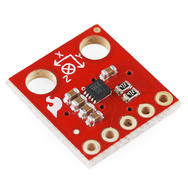
In Learning to Use I2C and Magnetometer not fried, I talked about interfacing the MAG3110 magnetometer and MQA8452Q accelerometer to an Arduino.  For both, I’m using breakout boards from Sparkfun Electronics.

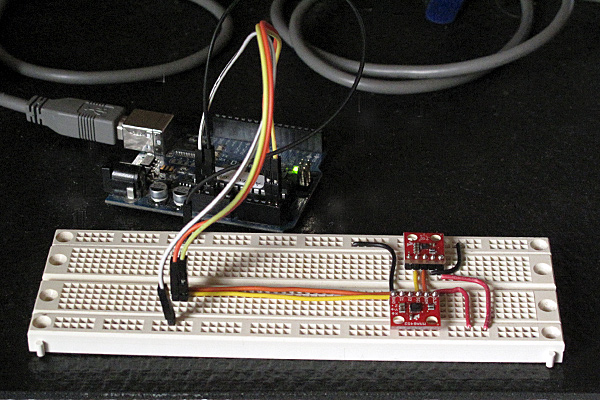
I  checked today that there are no problems when I connect both devices to the same I2C bus.

The first test was very simple: I put both the breakout boards into a breadboard and wired them together, then tried running each of the programs I’d written for the chips separately. Result: no problems—worked first time.

I then tried merging the programs (cleaning up any naming conflicts) so that both could be run from the same code.  After a few typo fixes, this also worked fine

I think I’m now ready to hand over the software to the students to use for their robot.

I still need to put the i2c.h, i2c.cpp, and accel_magnet code in some public place for others to use (perhaps on github? maybe on my web pages at work?) [UPDATE 2012-jan-31: I have put the libraries and the sample code for the accelerometer and magnetometer at http://users.soe.ucsc.edu/~karplus/Arduino/]

One thing that is still missing is doing tilt correction for the compass heading.  Since the ROV is not expected to remain level (the accelerometer is intended to be used in a feedback loop to adjust the pitch, with anything from -90° to +90° being reasonable), getting a good compass heading requires rotating the magnetometer readings into the horizontal plane.  Only one of the students in the robotics club has had trigonometry or matrix math, so I’ll have to work with him to get him to figure out how to do the tilt correction. It may be simplest conceptually  to compute pitch and roll angles first, then rotate twice, rather than trying to do the whole tilt correction in one step (especially since the Arduino does not have matrix libraries).

Related articles

Tagged: accelerometer, Arduino, I²C, magnetometer, robotics, SparkFun, SparkFun Electronics

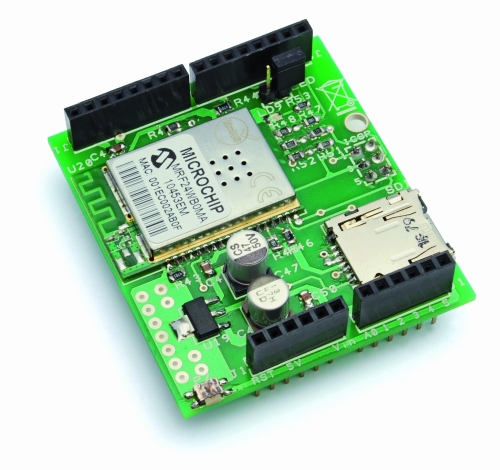
Arduino WiFi Shield


The shield most used in practice are those that expand the communication of the Arduino board and in particular those that allow to add a network connection to a TCP / IP.
The first shield of this kind were those based on Ethernet technology, which helps the Arduino to connect to a LAN based on Ethernet TCP / IP, and so to Internet.
The convenience of Wi-Fi is now known to all: no more cables to spread (which increases the cost and time of construction of any plant) and full freedom in the positioning of the different nodes of the wireless network.
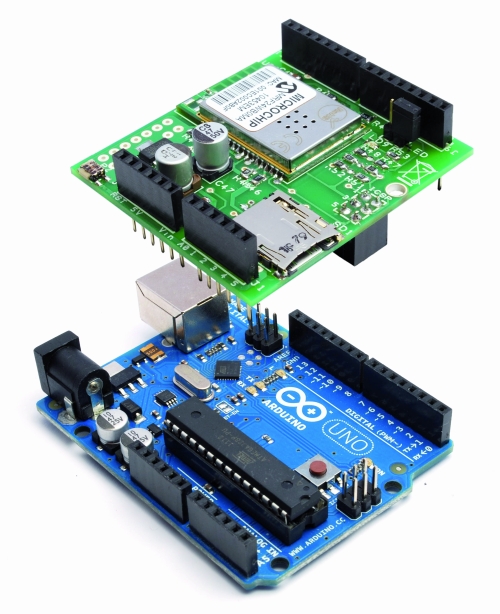
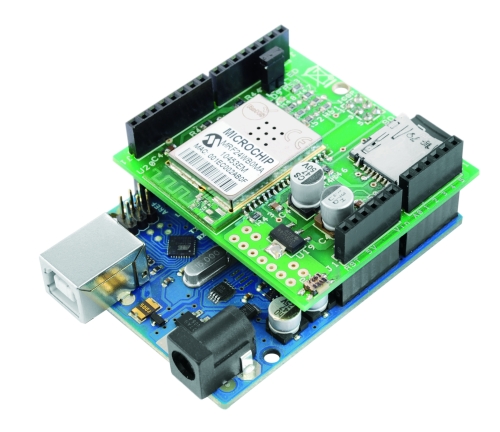
One of the first companies to focus on Wi-Fi was the AsyncLabs, who proposed a famous WiFi shield, including the appropriate libraries.
What we propose is a new solution for Wi-Fi: this is a shield that the hardware was inspired by that of AsyncLabs, but in addition, we have provided a slot for microSD memory.
The basic component of the shield that we have made is a Wi-Fi module MRF24WB0MA manufactured by Microchip.
The device is a Wi-Fi IEEE 802.11 RF transceiver, with a data rate between 1 and 2 Mbps, and with an internal antenna.
The WiFi shield supports both types of wireless networks infrastructure (BSS) and ad-hoc (IBSS) and is also allowed to connect to secure networks (cryptographers and are supported 64 and 128-bit WEP, WPA/WPA2 and TKIP, AES and PSK).
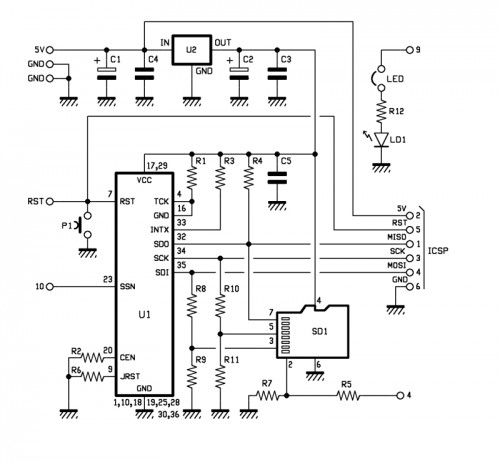
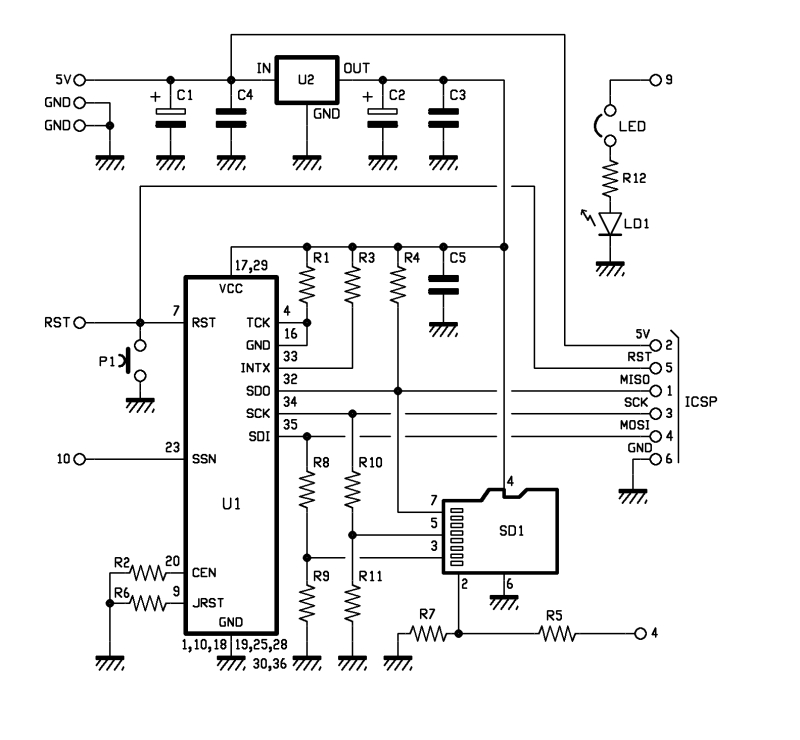
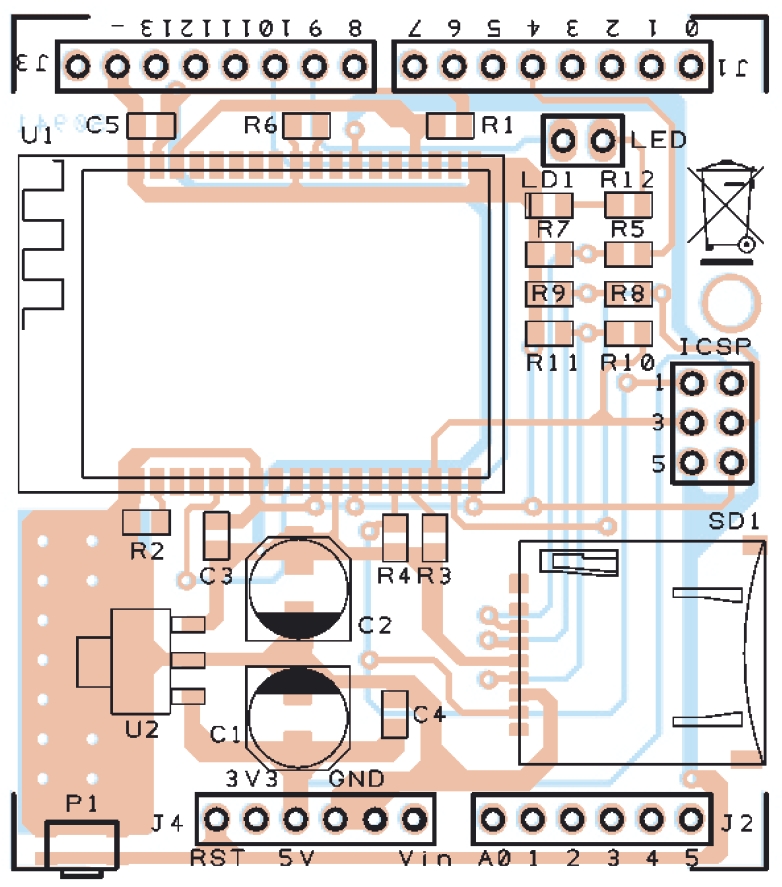
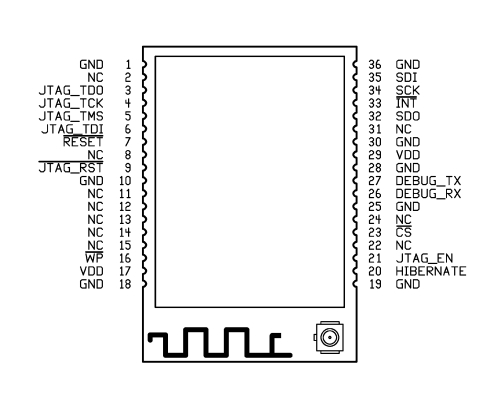
In our project is using the SPI connection for communication with the WiFi controller through the SDO, SCK and SDI (pin 32, 34 and 35) and, if necessary, can be reset using a button (P1 in the diagram).
Peculiarities of our shield is that it has a SD card slot (SD1 signed in the schematic), managed by Arduino always through the SPI port.
There is also a LED (LD1 signed) used to indicate whether the Wi-Fi is active or not, its management is implemented through a hardware port, so you usually can not be used by software. In the event that was needed precisely this port, you still have a jumper that, when opened, making it available again disconnect the LED pin I / O.
Finally, to complete the hardware of the shield there is a section dedicated to the power, consists of a 3.3 V voltage regulator (indicated with U2).
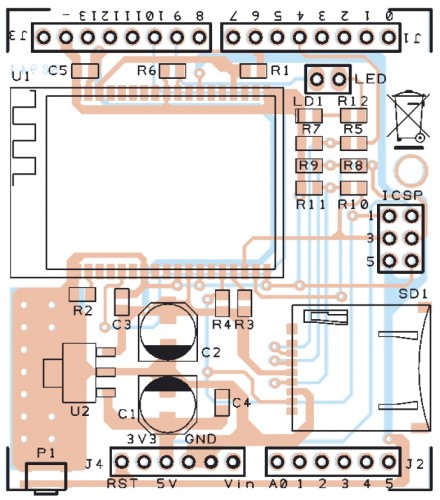
BOM

R1: 4,7 kohm (0805)
R2: 4,7 kohm (0805)
R3: 4,7 kohm (0805)
R4: 4,7 kohm (0805)
R5: 1 kohm (0805)
R6: 4,7 kohm (0805)
R7: 2,2 kohm (0805)
R8: 1 kohm (0805)
R9: 2,2 kohm (0805)
R10: 1 kohm (0805)
R11: 2,2 kohm (0805)
R12: 330 ohm (0805)

C1: 220 µF 6,3 VL (D)
C2: 220 µF 6,3 VL (D)
C3: 100 nF (0805)
C4: 100 nF (0805)
C5: 100 nF (0805)

LD1: Led (0805)

U1: MRF24WB0MA/RM
U2: TC1262-3.3 (SOT-223)

SD1: µSD-Card (MICROSDSOCK2)

P1: switch SMD

Varie:
- headers  male 2 via
- headers  M/F 6 via(2 pz.)
- headers  M/F 8 via(2 pz.)
- headers  M/F 3 via(2 pz.)
- Jumper
- PCB

The library supports various operating modes, which are Web Server, Web Client, Socket, UDP and WiServer.

The library is constantly evolving, so we have provided a space where they will be published on code.google.com various versions available.

Code Example for WiFi shield

 Web Client

/******************************************************
 SoftwareDemo2WebClientWiFi
 Esempio codice Web Client tramite Wi-Fi
 Autori: Ingg. Tommaso Giusto e Ing. Alessandro Giusto
 Email:  tommro@libero.it
******************************************************/

// Inclusione Libreria per Server Web WiFi
#include <WiServer.h>

// Definizione Parametri Rete Wireless
#define WIRELESS_MODE_INFRA	1  // Infrastrutturata (basata su Access Point)
#define WIRELESS_MODE_ADHOC	2  // Ad-hoc (senza Access Point)

unsigned char local_ip[] = {192, 168, 1, 250};      // Indirizzo IP
unsigned char gateway_ip[] = {192, 168, 1, 91};	    // Indirizzo gateway IP
unsigned char subnet_mask[] = {255, 255, 255, 0};   // Subnet Mask
const prog_char ssid[] PROGMEM = {"Sitecom"};	    // SSID access point

// Selezione tipo di cifratura rete Wireless
unsigned char security_type = 0;  // 0 -> nessuna cifratura
                                  // 1 -> cifratura WEP
                                  // 2 -> cifratura WPA
                                  // 3 -> cifratura WPA2

// Password cifratura per WPA/WPA2 (max. 64 cratteri)
const prog_char security_passphrase[] PROGMEM = {"12345678"};

// Password cifratura per WEP 128-bit keys
prog_uchar wep_keys[] PROGMEM = {0x01, 0x02, 0x03, 0x04, 0x05, 0x06, 0x07, 0x08, 0x09, 0x0a, 0x0b, 0x0c, 0x0d,
				 0x00, 0x00, 0x00, 0x00, 0x00, 0x00, 0x00, 0x00, 0x00, 0x00, 0x00, 0x00, 0x00,
				 0x00, 0x00, 0x00, 0x00, 0x00, 0x00, 0x00, 0x00, 0x00, 0x00, 0x00, 0x00, 0x00,
				 0x00, 0x00, 0x00, 0x00, 0x00, 0x00, 0x00, 0x00, 0x00, 0x00, 0x00, 0x00, 0x00};

// Selezione tipo di rete Wireless infrastrutturata
unsigned char wireless_mode = WIRELESS_MODE_INFRA;

// Variabili per lunghezza SSID e password di cifratura
unsigned char ssid_len;
unsigned char security_passphrase_len;

// Definizione Parametri Google Search
// Indirizzo IP per server www.google.it
uint8 google_ip[] = {209, 85, 148, 106};

// Richiesta GET verso GOOGLE
GETrequest getGoogleSearch (google_ip, 80, "www.google.it", "/search?q=ElettronicaIn");

// Inizializzazione Scheda
void setup() {
  // Inizializzo WiServer (NULL indica non dobbiamo servire pagine Web)
  WiServer.init (NULL);
  // Inizializzo porta seriale
  Serial.begin (9600);
  WiServer.enableVerboseMode (false);

  // Inizializzazione richiesta GET (parametro indica funzione a cui verra' passata la risposta)
  getGoogleSearch.setReturnFunc (Gestione_Risposte_Web);
}

// Variabile memorizzazione riavvio (millisecondi) di esecuzione ricerca
long updateSearch = 0;

// Programma Principale
void loop() {
  // Se passato periodo di attesa esecuzione ricerca
  if (millis() >= updateSearch) {
    // Eseguo ricerca
    getGoogleSearch.submit();
    // Aggiorno tempo di riavvio (attensa di 1 ora)
    updateSearch = updateSearch + (1000 * 60 * 60);
  }

  // Avvio WiServer
  WiServer.server_task();

  // Attesa
  delay(10);
}

// Gestione diverse risposte provenienti dal WEB
void Gestione_Risposte_Web (char* data, int len) {
  // Stampo la risposta proveniente dal WEB su porta seriale
  int i;

  // Stampo i singoli caratteri della risposta proveniente dal WEB su porta seriale
  for (i = 0; i < len; i++) {
    Serial.print(*(data));
    data++;
  }
}

Web Server

/******************************************************
 SoftwareDemo1WebServerWiFi
 Esempio codice Web Server tramite Wi-Fi
 Autori: Ingg. Tommaso Giusto e Ing. Alessandro Giusto
 Email:  tommro@libero.it
******************************************************/

// Inclusione Libreria per Server Web WiFi
#include <WiServer.h>

// Definizione pin INPUT/OUTPUT
int Pin_Led_Rosso = 7;  // Led rosso uscita digitale 7

// Definizione Variabili Globali Stato Led
byte Stato_Led_Rosso = 0;  // Stato led rosso

// Definizione Parametri Rete Wireless
#define WIRELESS_MODE_INFRA	1  // Infrastrutturata (basata su Access Point)
#define WIRELESS_MODE_ADHOC	2  // Ad-hoc (senza Access Point)

unsigned char local_ip[] = {192, 168, 1, 250};      // Indirizzo IP
unsigned char gateway_ip[] = {192, 168, 1, 91};	    // Indirizzo gateway IP
unsigned char subnet_mask[] = {255, 255, 255, 0};   // Subnet Mask
const prog_char ssid[] PROGMEM = {"Sitecom"};	    // SSID access point

// Selezione tipo di cifratura rete Wireless
unsigned char security_type = 0;  // 0 -> nessuna cifratura
                                  // 1 -> cifratura WEP
                                  // 2 -> cifratura WPA
                                  // 3 -> cifratura WPA2

// Password cifratura per WPA/WPA2 (max. 64 cratteri)
const prog_char security_passphrase[] PROGMEM = {"12345678"};

// Password cifratura per WEP 128-bit keys
prog_uchar wep_keys[] PROGMEM = {0x01, 0x02, 0x03, 0x04, 0x05, 0x06, 0x07, 0x08, 0x09, 0x0a, 0x0b, 0x0c, 0x0d,
				 0x00, 0x00, 0x00, 0x00, 0x00, 0x00, 0x00, 0x00, 0x00, 0x00, 0x00, 0x00, 0x00,
				 0x00, 0x00, 0x00, 0x00, 0x00, 0x00, 0x00, 0x00, 0x00, 0x00, 0x00, 0x00, 0x00,
				 0x00, 0x00, 0x00, 0x00, 0x00, 0x00, 0x00, 0x00, 0x00, 0x00, 0x00, 0x00, 0x00};

// Selezione tipo di rete Wireless infrastrutturata
unsigned char wireless_mode = WIRELESS_MODE_INFRA;

// Variabili per lunghezza SSID e password di cifratura
unsigned char ssid_len;
unsigned char security_passphrase_len;

// Inizializzazione Scheda
void setup() {
  // Inizializzo pin usati come INPUT/OUTPUT
  pinMode (Pin_Led_Rosso, OUTPUT);

  // Inizializzo WiServer (Gestione_Richieste_Web per creare/trasmettere pagine HTML)
  WiServer.init (Gestione_Richieste_Web);
  // Inizializzo porta seriale
  Serial.begin (9600);
  WiServer.enableVerboseMode (false);

  // Spengo led rosso
  Led_Rosso_OFF();
}

// Programma Principale
void loop() {
  // Avvio WiServer
  WiServer.server_task();
}

// Gestione diverse richieste provenienti dal WEB
// INPUT:   URL pagina web richiesta
// OUTPUT:  Flag URL riconosciuto/non riconosciutoo
boolean Gestione_Richieste_Web (char* URL) {
  // Se URL richieso corrisponde a "/" (pagina index)
  if (strcmp (URL, "/") == 0) {
    // Secondo gli I/O creo e invio le pagine Web
    Invia_Pagina_Web();

    // Ritorno URL è stato riconosciuto
    return (true);
  }    // Chiusura if URL richieso corrisponde a "/" (pagina index)

  // Se URL richieso corrisponde a "?OPERATION=ACCENDI_ROSSO
  if (strcmp (URL, "/?OPERATION=ACCENDI_ROSSO") == 0) {
    // Accendo led rosso
    Led_Rosso_ON();
    Stato_Led_Rosso = 1;

    // Secondo gli I/O creo e invio le pagine Web
    Invia_Pagina_Web();

    // Ritorno URL è stato riconosciuto
    return (true);
  }    // Chiusura if URL richieso corrisponde a "?OPERATION=ACCENDI_ROSSO"

  // Se URL richieso corrisponde a "?OPERATION=SPEGNI_ROSSO"
  if (strcmp (URL, "/?OPERATION=SPEGNI_ROSSO") == 0) {
    // Spengo led rosso
    Led_Rosso_OFF();
    Stato_Led_Rosso = 0;

    // Secondo gli I/O creo e invio le pagine Web
    Invia_Pagina_Web();

    // Ritorno URL è stato riconosciuto
    return (true);
  }    // Chiusura if URL richieso corrisponde a "?OPERATION=SPEGNI_ROSSO"

  // Ritorno URL non riconosciuto
  return (false);
}

// Funzione che, secondo gli I/O, crea e invia le pagine Web
void Invia_Pagina_Web() {
  // Usando le funzioni WiServer.print trasmette al pagina Web da visualizzare
  WiServer.print ("<html>");
  WiServer.print ("<head>");
  WiServer.print ("<meta http-equiv=""refresh"" content=""10;url=http://");
  WiServer.print (local_ip[0], DEC);
  WiServer.print (".");
  WiServer.print (local_ip[1], DEC);
  WiServer.print (".");
  WiServer.print (local_ip[2], DEC);
  WiServer.print (".");
  WiServer.print (local_ip[3], DEC);
  WiServer.print ("/"" />");
  WiServer.print ("</head>");
  WiServer.print ("<p align=""center"">");
  WiServer.print ("Hello World!<br>");
  WiServer.print ("Esempio Web Server tramite librerie WiShield<br>");
  WiServer.print ("By Ingg. Tommaso Giusto e Ing. Alessandro Giusto<br>");
  WiServer.print ("(tommro@libero.it)<br>");

  // Se led rosso spento
  if (Stato_Led_Rosso == 0) {
    WiServer.print ("<form>Led rosso spento<br>");
    WiServer.print ("<method=GET>");
    WiServer.print ("<input type=submit name=OPERATION value=ACCENDI_ROSSO></form><br>");
  }    // Chiusura if led rosso spento
  // Se led rosso acceso
  else {
    WiServer.print ("<form>Led rosso acceso<br>");
    WiServer.print ("<method=GET>");
    WiServer.print ("<input type=submit name=OPERATION value=SPEGNI_ROSSO></form><br>");
  }    // Chiusura if led rosso acceso

  // Termino pagina HTML
  WiServer.print ("</html>");
}

// Accende il led rosso
void Led_Rosso_ON() {
  digitalWrite (Pin_Led_Rosso, LOW);
}

// Spegne il led rosso
void Led_Rosso_OFF() {
  digitalWrite (Pin_Led_Rosso, HIGH);
}


Magnetometer was not fried

MAG3110 breakout board by Sparkfun

In Learning to Use I2C, I talked about the difficulty I’d been having getting the MAG3110 breakout board from Sparkfun to work, and my fears that I had burned it out by running it overnight at 5v (instead of the rated 3v).  I suspected that my problem was really a software problem, but debugging the software when I was afraid that the hardware was fried seemed like an exercise in futility.

I bought another of the breakout boards from Sparkfun (they’re only $15), and soldered on a header yesterday.  The code failed in almost exactly the same way with the new (presumed good) part as with the old (presumed fried) part, so I was convinced that the problem was indeed in the software.

I spent half of yesterday and most of this morning carefully rewriting the library of I2C interface code.  I was starting with example code from Sparkfun for the MMA8452Q accelerometer, which I had generalized to handle other I2C devices.

The library worked fine with the accelerometer, so I thought it was ok, but it did not work with the magnetometer. I added a lot of error checking (making sure that the microprocessor was in the expected state after each I2C operation), and found that things were not working as expected. The extra error checking made it much easier to diagnose the problems. I had to re-read the I2C documentation in the ATMega328 datasheet several times, to make sure that I had all the details right (I didn’t, of course). The documentation in that data sheet is better than several of the tutorials I’ve seen on line, and is both thorough and comprehensible in describing the interface.

I did not implement all features of the I2C  interface—in fact, I have a rather minimal implementation that uses polling rather than interrupts and assumes that the Arduino will always be the bus master.  Those assumptions are fine for most Arduino projects, which just use the I2C bus for talking to a handful of peripherals, but sometime in the future I may need to make a more complete set of code that can handle multiple masters, the Arduino as a slave device, and interrupts rather than polling and waiting for operations to finish.

Because I was more interested in simplicity and robustness than speed, I rewrote the code so that transactions were finished (and appropriate status checked) before functions returned.  With these changes I found that the STOP condition was not happening, despite being requested.  All other operations on the bus are checked with the TWINT bit  of the TWCR register and the upper bits of the TWSR register, but determining that STOP has completed requires checking the TSWTO bit of the TWCR register. The code I had started from just checked the TWINT bit for the other operations, and had a fixed timeout that was too short—it did no checking at all on the STOP state, just adding a fixed delay.

Once I got the STOP timing cleaned up (and earlier, making sure to send NAK when reading the last byte), everything worked fine.  The accelerometer code  had probably worked ok because there were enough delays after stops that the stops completed, even though I had not checked to make sure.  With the fixed code, even the magnetometer that I thought I had fried seems to work ok.

The interface for the students in the Robotics Club is fairly simple (much simpler than the standard “Wire” library):

// Read one register
uint8_t i2cReadRegister(uint8_t i2c_7bit_address, uint8_t address);
// Read num_to_read registers starting at address
void i2cReadRegisters(uint8_t i2c_7bit_address, uint8_t address, uint8_t num_to_read, uint8_t * dest);

// Write one register
void i2cWriteRegister(uint8_t i2c_7bit_address, uint8_t address, uint8_t data);
// Write num_to_write registers, starting at address
void i2cWriteRegisters(uint8_t i2c_7bit_address, uint8_t address, uint8_t num_to_write, const uint8_t *data);

I suppose I should check that there are no problems when I connect both devices to the same I2C bus, before handing this over to the students to use for their robot.

I should also put the i2c.h and i2c.cpp in some public place for others to use (perhaps on github? maybe on my web pages at work?). It is really a shame that WordPress.com does not permit code-like files as pages.

Related articles

Tagged: accelerometer, Arduino, i2c, magnetometer, robotics, SparkFun, SparkFun Electronics

Arduino hack gives a second screen to Android phones, isn't very useful (video)

Who knows why tech tinkerers do what they do. We're just happy to see those idle hands try the untested. Like this latest Arduino hack from modder Michael of Nootropic Design, who's seen fit to rig a 16 x 32 LED matrix up to an Android phone for use as a secondary display. The outputted video, downscaled via OpenCV software to an appropriate resolution and 12-bit color, is admittedly unimpressive, as it chugs along at a paltry four frames per second. But that's not the point of this can-do experiment -- it's all about the possibilities, however blurry and pointless they may be (although, we're sure Barbara Walters would beg to differ). Ready to see this modjob in motion? Then head on past the break for a brief video demo.

Continue reading Arduino hack gives a second screen to Android phones, isn't very useful (video)

Arduino hack gives a second screen to Android phones, isn't very useful (video) originally appeared on Engadget on Wed, 25 Jan 2012 09:28:00 EST. Please see our terms for use of feeds.

Permalink | Email this | Comments

Speech / Voice Recognition. Arduino project, next in a series FFT and Arduino.

 Finally, I’d like to present  the most sophisticated project I’ve done so far, build around the idea turning Arduino board into a DSP.  The results are really impressive for small microprocessor, with low memory size and low MIPS. IMHO, arduino provides better results, than Windows Vista VR system, with 1 GB / 2.2 GHz  hardware, for short one-two words commands, of course.
No HMM, neural networks, or other very popular and “scientifically sounding” theories, were considered to be implemented in the algorithm. Google brings up  millions links on a topic, just ask, but only few of them are designed on really scientific concept, rather than dumb data base “sharpening”. I’m not saying they are completely wrong, and I’m not an expert in the field, but they are not smart ether. My decision is simple 2D cross-correlation. Basically, the heart of the recognition algorithm is similar to an image matching program, which works the same way for voice/sound.  To create a Spectrogram image, arduino is continuously monitoring sound level via microphone, and start capturing data when VOX threshold is exceeded. After input array “X” filled up, data transfered on next level to calculate FFT. The same “conveyor belt” works between FFT and Filtering, flags raised when data is ready, and flags lowered when process finished. The only difference is a speed, conveyor belt is running faster passing data ADC-FFT, and slower at Filter-Correlation stage, as it requires 64 regular cycles to complete spectrogram image in one SuperCycle.  The most time consuming part is Edge Enhancement / HPF Filtering of the spectrogram. I’m still looking around to improve performance of this stage, as it holds all process back from to be fully “Real Time”.
 Specification:
-  4 kHz sampling rate:  2 kHz voice freq. range;
-  64 FFT subroutine,    62.5 Hz spectral resolution;
-  16 x 64 Spectrogram Image, around 1 second max voice password;
-  duration of the Cross-Correlation < 5 milliseconds;
-  duration of the FFT+SQRT+Compression < 4 milliseconds;
-  duration of the Edge Enhancement ~ 35 milliseconds;Main cycle time frame is 16 milliseconds, it’s defined by sampling rate x FFT size, 0.25 x 64 = 64 millisecond. Super-cycle 1.024 is needed only because EE prevents all processes to be completed in less than 16 milliseconds. There is a resources left, to increase sampling up to 8 or even 12 kHz, I just had no time to conduct experiments if it is beneficial.

There is a Command Line Interface, built-in the software, which control “record” and debug “print” functions, 7 commands for now:
if (incomingByte == ‘x’) {           // INPUT ADC DATA
if (incomingByte == ‘f’) {           // FFT OUTPUT
if (incomingByte == ‘s’) {           // SPECROGRAMM PRE  FILTERED
if (incomingByte == ‘g’) {           // SPECROGRAMM POST FILTERED
if (incomingByte == ‘r’) {           // RECORD SPECROGRAMM TO EEPROM
if (incomingByte == ‘p’) {           // PLAY SPECROGRAMM FROM EEPROM
if (incomingByte == ‘m’) {           // FREE MEMORY BYTES

Software is written for AtMega328p microprocessor, Arduino Uno board or similar. For others, all referenced registers has to be replaced with appropriate names for microprocessor.Compiles on 022 IDE, there are some conflicts with 1.0 IDE, that I was not feel myself right to troubleshoot yet. For better understanding some math background, have a look at my previous posts.

Link to download a sketch:   Voice_Recognition_24_01

Analog front-end is the same, as I used in my first project: Color Ogran
There is not much could be improved on this part, and I again used both inputs – from microphone to do tests with my own voice, and also from “line” input, for single tone test generated by computer during debugging. Next picture shows “s” command print-out in the serial monitor window, after I pronounce a word : “Spectrogram” . Due limited size of the window, data printed with 90 degree rotation, left-right is frequencies bands direction, and up-down is time. Lower freq. on left side (60 Hz) and higher (2 kHz) on the right.  The same time 3D images generated in right view angle.

This is how spectrogram looks like after “g” command entered in serial monitor and word sounds just right after that:

Next couple images created with single tone frequency  (320 Hz), just to show more clear “internal properties” of the filtering, again “s” and “g” commands were entered:

Well, as tone sounds continuously, it shows filtering in one direction only, and not the best tutorial on edge-enhancement theory. (“Home brew” lab limits). The same time last picture shows, that each “peek” on the original spectrogram, become surrounded by negative smaller peeks, resulting in “0″ overall sum  on 3×3 foot-print, and consequently on the whole map. In electronics it goes under HPF name, and essence of process is to remove DC component, plus attenuate  Low Frequencies.
Excelent on-line book

Short manual:
to be completed later


Learning to use I2C

For the Santa Cruz Robotics Club, I’ve bought three sensors for their underwater ROV: a magnetometer, an accelerometer, and a pressure sensor.

Originally, we were going to an ADXL335 accelerometer (with a breakout board by Adafruit Industries) and an MPXHZ6250A pressure sensor (no magnetometer), for which I designed a small PC board, but once the specs for this year’s mission came out, we saw that they wanted us to determine compass headings for a “sunken ship”, so it seemed a natural thing to add a magnetometer to the hardware.  After looking at what was available, I chose the MAG3110 breakout board from Sparkfun, because it provided a triple-axis magnetometer for only $15.

The MAG3110 is an I2C interface, which means we need only 2 wires to hook it up (and the wires can be shared with other I2C devices).  If we are going to all the trouble of figuring out an I2C interface, I figured we might as well use it for the accelerometer as well, so I got a MMA8452Q breakout board from Sparkfun also.

I decided to do a simple test program for the I2C parts before handing them over to the robotics club, so that they could be sure they had working parts.  It was a good thing I did, because I spent more than an entire day trying to get the parts to work.  I finally gave up on the “Wire” library from the Arduino website, and tried using the i2c.h file from Sparkfun (example code linked to from the accelerometer web page).  I got that working and rewrote the library as a proper .h and .cpp file, so that it could be installed as a normal Arduino library, adding some of the utility calls that had been buried in the MMA8452 demo code.

The MMA8452Q code was working fine, so I tried using the same i2c library for the MAG3110 magnetometer.

I had gotten MAG3110 working with the Wire library, but running at 5v (I’d not noticed that it was a 3.3v part—rather, I thought I’d checked that it was a 5v part, but I was wrong).  I’d left it powered at 5v all night, and I think I burned it out, as it was quite warm in the morning.  Today, I can read and write the registers of the MAG3110, but the xyz values are not coming out reasonable at all—I frequently get the same values (like 0xF9F9)and 0x1DF9), independent of the orientation. If I read all the registers, a lot of them come out as 0xF9 or 0x1D.  Even the WHO_AM_I register (which should be 0xC4) often comes out 0x1D.  I seem to get intermittent correct values for registers, but mostly bogus values.

I’ll feel stupid if I order another part and it turns out to be a software bug, but I’m pretty sure the chip is fried.  But I guess it is time to do another Sparkfun order. (I owe them some business, after calling them for the replacement photointerrupter.)

Incidentally, I tried finding a usable pressure sensor with an I2C interface, but it doesn’t look like anyone is making them except for barometric pressure ranges for dry gases.  I suppose Freescale will eventually come out with a full range of I2C pressure sensors, but my guess is that will be a long time coming, as the automotive and industrial applications have a pretty long product design cycle (unlike consumer electronics, which is driving the barometric pressure sensors).


Tagged: accelerometer, Adafruit Industries, Arduino, magnetometer, robotics, SparkFun, SparkFun Electronics

Pendulum lab went well

In today’s lab we derived the formula for the period of a simple pendulum (assuming the small-angle approximation), , then measured both circular and simple pendulums.  For the circular pendulum we measured the radius of the cone on the first orbit and the last orbit, the length of the string (the slant height of the cone), and approximated the period by timing 10 or 20 periods and dividing.  For the simple pendulum, we used the photogate setup described in More on pendulums, to get very precise and repeatable measurements of the period.  The hardest part for us was measuring the length of the pendulums, since the center of mass for the bob was not obvious and the exact position of the pivot was not obvious—these uncertainties probably resulted in length measurements being ±5mm, making a large contribution to inaccuracy.

Here is a table of the measurements (and calculated g) we made for the circular pendulum:

Length cm radius cm num orbits period sec g cm/sec^2
 212.4  48.6–46.6 10 2.90  970.8–972.6
 212.4  38–52.4 20 2.601  959.8–974.7
 161.5  58–60.5 20 2.501  938.7–984.2

The range of estimates for g is larger than I would like.  I think that the decay of the oscillation of the pendulum makes quite a difference.  The average of all the estimates of g is 967 gm/sec^2, which is rather low.

And for the simple pendulum:

Length cm num ticks mean period sec standard deviation g cm/sec^2
207.2 47 2.8958 0.0050 975.4
171.3 74 2.6272 0.0065 979.8
95.5 89 1.9565 0.0025 984.9
54.7 58 1.4809 0.0042 984.7
28.7 44 1.0730 0.0019 984.0

The pendulum ticked reliably for quite a while, and the periods were remarkably consistent.  The estimates of g from the simple pendulum are good to about 0.5%, which is the limitation of accuracy on our pendulum length measurements and close to the limit of the accuracy of the small-angle approximation.  The average of the 5 measurements looks good to about 0.2%, which seems pretty good to me, since we certainly weren’t measuring the lengths that accurately.

I looked up the gravitational field in Santa Cruz on Wolfram Alpha’s gravitational fields widget:

total field | 9.7995 m/s^2  (meters per second squared)
angular deviation from local vertical | 0.00322°  (degrees)
down component | 9.79945 m/s^2  (meters per second squared)
west component | 3.4×10^-4 m/s^2  (meters per second squared)
south component | 0.0316 m/s^2  (meters per second squared)
(based on EGM2008 12th order model; 11 meters above sea level)

While the lab was running, one of the students wrote a Python script (using numpy for mean and standard deviation) to read the data and compute the numbers in the table.  We could have talked directly to the Arduino, but it was simpler to cut the numbers from the Arduino serial monitor and paste them into a file for the script to read. That allowed us to keep the Arduino running throughout, and just cut and paste the good numbers, discarding the junk from starting or stopping the pendulum.

I’m quite pleased with the photogate setup, which was very simple to build and worked reliably during the experiment. Crudely wrapping tape around the string made a lumpy opaque object, whose rotation probably contributed to the standard deviation of the  period—having a smoother cylinder for the optical blocker would probably make the period measurement much more consistent.  But that would not improve the mean estimates much since errors in adjacent period measurements cancel.  I believe that our mean periods are much more accurate than the standard deviations suggests, with errors less than 1 per thousand.

I had to make one change in the Arduino code during the lab to accommodate all the different pendulum lengths—I had a dead time before recognizing the next pulse, to prevent getting 2 pulses per period as the string passed through the beam twice.  I started with a dead time of 1 second, which as a bit too long for the smallest pendulum.  Reducing the dead time to 500 msec for that pendulum made it count reliably.  Note that for the 2nd and 3rd pendulum, we measured for about 3 minutes without a bad time measurement, and could have gone longer if we had had the patience.


Tagged: AP physics, Arduino, circular pendulum, g, gravity, high school, Newton, pendulum, photogate, physics

Adafruit Flora lets you wear your open-source love on your sleeve

Let's face it, not every occasion calls for pulsating cufflinks, so Adafruit is offering up a little more diversity in its wearable line with Flora, an open-source electronics platform that you can wear on your person. The 1.75-inch board is not quite available for sale, but it's currently being put through some real-world testing. The platform features built-in USB support and will offer up modules for Bluetooth, GPS, OLED and a bunch more. No word on an exact date, though Adafruit has a page you can visit to sign up for shipping notifications, which has the timeframe at around 15 to 20 business days -- check that out in the source links below. As for cost, the company has promised "great pricing" for hackerspaces, resellers and educators. Video of the Flora in action after the break.

Continue reading Adafruit Flora lets you wear your open-source love on your sleeve

Adafruit Flora lets you wear your open-source love on your sleeve originally appeared on Engadget on Fri, 20 Jan 2012 13:57:00 EST. Please see our terms for use of feeds.

Permalink | Email this | Comments
Engadget 20 Jan 18:57

More on pendulums

In Newton’s measurement of g, I described a failed experiment to measure g with a motorized circular pendulum. Further experimentation on my own lead me to adopt for this week’s lab the standard approach using an unpowered circular pendulum.  The cone formed by the string can be described as having height , base radius , and hypotenuse , the length of the string.  If the circular pendulum has period , then (derived in the Newton post).  If we make the string long and push the pendulum with the right speed to get a nearly circular (rather than elliptical) motion, then is nearly constant for many orbits, and we can estimate the period with just a stopwatch by counting 20 or 30 periods.  Using a large enough mass means that neglecting air resistance is now reasonable (which it was not for the tiny mass I started with).

Thanks to John Burk for suggesting that I forget about the motor—that seems to be the best approach, even though I then can’t use the photogate to time the period.  I’m hopeful that we can measure the height and the period accurately enough to get within about 2% of the right value for .

This week in addition to doing the circular pendulum right, I wanted to do simple pendulums.  I’ve assigned problem 4.P.89 in Matter and Interactions, which seems to be the only place in the book that simple pendulums are done.  It is a computational problem, since there isn’t an analytic solution (though the small-angle approximation works pretty well up to about 45°).  I hope the students have done that by tomorrow!

I wanted to measure the period of the pendulum directly (not averaging over many periods), to demonstrate that the amplitude does not matter much.  Unfortunately, I’ve not yet built a sensor that works for this. I tried using the photogate, but I could not hit the 1 cm gap consistently, even with a shorter pendulum.

I also tried using a magnetic sensor (using the circuit I used for the speed-of-sound lab) with a magnet for the pendulum weight, but that triggered at random times as the magnet came close.  Even 20cm away the field was enough to trigger the detector, and I got almost random timings.  A magnetometer was no better than the coil and comparator, as the magnetic field varied chaotically (from movements of the magnet other than the simple pendulum swing, such as twirling on the string).  The magnetometer was usable as a compass, though, which is good, because I originally bought it for the robotics club to use as a compass.  There are some tricky points to using it as a compass, which I’ll talk about in a different post.

I then tried marking the top of the string with a bit of electrical tape and using the photogate there.  That was the most successful so far—if I hold the photogate steady enough, I can get readings repeatable to ±20msec, which is much better than I can do with any other approach I’ve tried.  For one pendulum hanging from the edge of my desk, I either got  two pulses at about 1.11 and 0.45 seconds or one pulse every 1.56 seconds, depending on whether the marker on the string passes all the way through the beam or blocks it continuously at the end of the swing. The random variation I get is probably because of holding the sensor by hand (to align with the string).

If I had a more rigid way to mount the sensor, I should be able get more consistent readings, so my main engineering task was to get a rigid pivot point on the ceiling beam (without making any holes) and mount the photogate in a rigid, but adjustable, way.  Of my two standard mechanical engineering techniques, duct tape and Lego, I chose Lego:

A view of the photogate mounted on the Lego beam next to the pendulum string.

Closeup of the photogate, showing the breakout board and sensor wedged between a plate and a beam, with a 2-plate spacer.

Having come up with a nice way to grip the photogate and still be able to swing a pendulum string into the gap, I connected the beam holding the photogate to the same right-angle platform that we had used last week for the motorized pendulum. This left a little gap that I could rest the Arduino board in, so that there was no tension on the wires to the photogate.

I was a bit worried that I might have to put my laptop on top of a ladder, since the USB cord is not very long, but I have a spare pair of USB-to-Cat5 converters (one set is for the robotics project), so I was able to make an extension cord out of a flexible Cat-5 Ethernet cable, giving me enough length to put my laptop safely on the desk.

The same Lego that holds the photogate can also support the Arduino, so I don't need to hold anything in my hands.

I had two other ideas I haven’t tried: using one of the ultrasonic range finders to track the pendulum motion and using a video camera to time the motion.  These require interpolation of position data to estimate the period, so I’d rather avoid them for now. The top-of-string photogate will work (I think) for the simple pendulum, and the circular pendulum can be timed with a stopwatch averaged over many periods.  (I could even use the photogate timer as a stopwatch, though the resolution of the stop watch on my Casio wristwatch is 0.01 seconds, and human reflexes make anything less than 0.1 second pretty much noise.)


Tagged: AP physics, Arduino, circular pendulum, g, gravity, high school, Lego, Newton, pendulum, photogate, physics

DIY Dazzling Laser Light Party Ball

Here’s a challenge for you: stuff over a dozen red lasers and a rechargeable lithium ion battery inside a tennis ball.  Oh, and also a microcontroller and infrared port to control patterns from afar.  To make your own, the author has constructed a high quality tutorial so you can build your own party ball.  You’ll need a soldering iron, a Dremel/rotary tool, wire cutters, and a few other craft items.

Top Laser Projects: